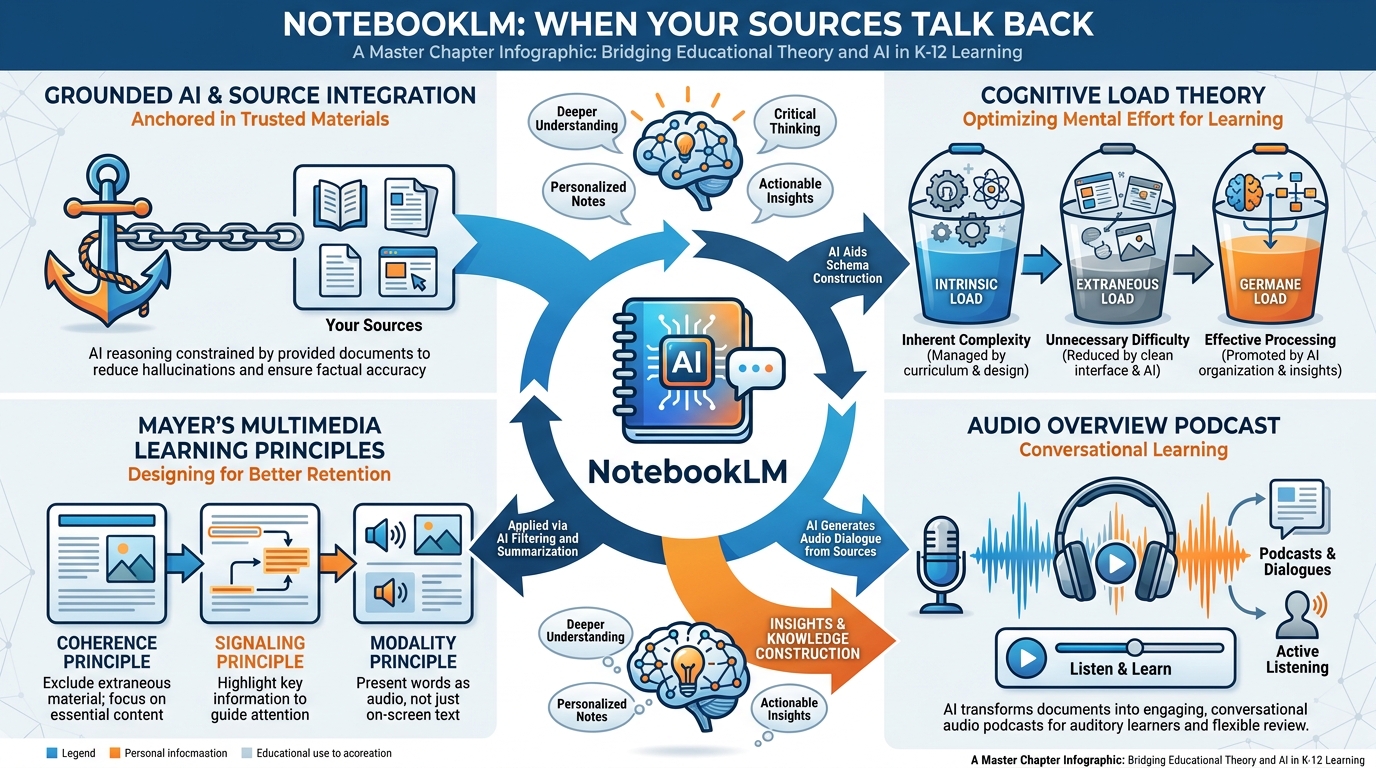
Figure 1:Chapter 4 at a Glance. NotebookLM sits at the intersection of grounded AI, reduced cognitive load, and Mayer’s multimedia learning principles. By the end of this chapter, each of these pieces will click into place — and you’ll have a working curriculum notebook to prove it.
Here is a confession most teachers will recognize.
You have a folder somewhere on your hard drive — or maybe in Google Drive, or on a USB stick you haven’t plugged in since 2019 — stuffed with PDFs. Research articles. Curriculum frameworks. State standards documents. Reading passages you’ve been meaning to turn into lesson materials for three years. A scanned professional development handout from that workshop in Tampa that actually changed how you think about assessment.
You saved all of it because it mattered. And now you can’t find any of it. Or worse — you can find it, you open it, and you spend forty-five minutes reading the same document you already read, trying to remember which section had the thing you needed.
Welcome to the PDF graveyard. Every teacher has one.
This chapter is about a tool that changes that. Not theoretically. Right now, for free, at notebooklm
By the end of this chapter, you’ll understand not just how to use it — but why it works, grounded in two of the most important learning theories of the past forty years. You’ll know how to load your sources, ask questions that actually get answers, generate study guides and audio overviews, share notebooks safely with students, and build a curriculum notebook that makes your entire year searchable.
Let’s start with the problem it solves.
14.1 The PDF Graveyard on Every Teacher’s Hard Drive
Think about the last time you planned a new unit. Really think about it. Where did you go first?
Maybe you Googled it. Maybe you scrolled through a pile of saved bookmarks. Maybe you asked a colleague in the hallway. Maybe you opened last year’s folder and tried to remember which version of the lesson was the one that actually worked. Maybe you found a 47-page curriculum guide published by your state department of education, skimmed it for five minutes, and quietly put it back where you found it because there was no way you were reading 47 pages before third period.
This is not a character flaw. This is a structural problem. Teachers are expected to be researchers, curriculum designers, content experts, and instructional coaches — all at once, with planning periods that keep getting shorter. The documents that should support your teaching are buried, scattered, unsearchable, and largely inaccessible in the moments when you actually need them.
The typical teacher accumulates hundreds of documents over a career: textbook chapters, journal articles, district pacing guides, differentiation resources, primary sources, professional reading. Almost none of it is organized in a way that makes it usable in the flow of daily planning. It sits on drives and in folders like geological strata — good materials buried under other good materials, waiting for someone to excavate them.
And here is what makes this particularly painful: the information in those documents could genuinely improve your teaching. That cognitive science article about spaced practice really would change how you design your review cycles. That primary source document really would give your unit on the Civil Rights Movement something no textbook can replicate. The materials are good. The problem is retrieval — your ability to get to the right thing at the right moment.
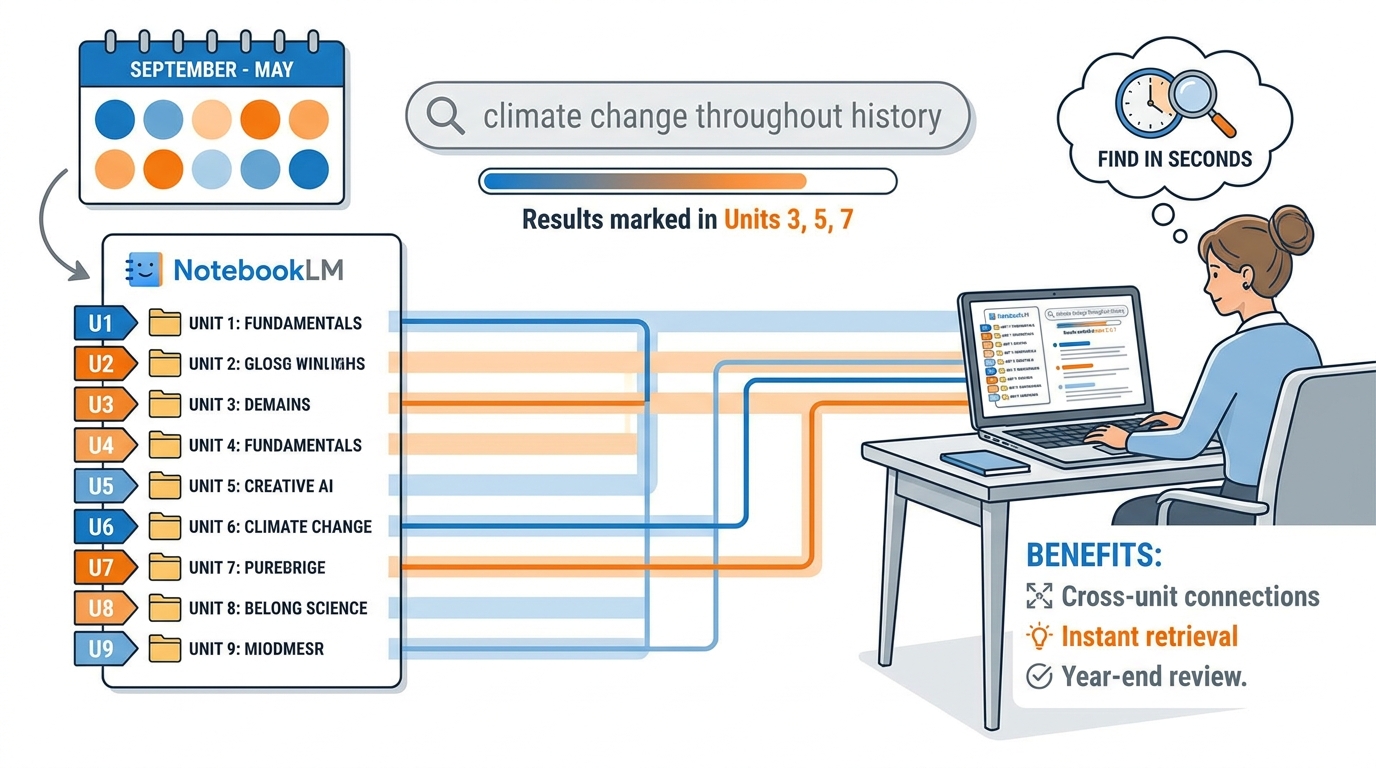
Figure 2:A whole year, searchable in seconds. Instead of hunting through folders, you ask a question and your own curriculum materials answer you back.
This is the problem NotebookLM was built to solve. Not in some abstract future state — right now. And to understand why it works as well as it does, you need to understand one concept that separates it from every other AI tool you’ve probably tried.
24.2 What NotebookLM Is — And, Just as Important, What It Isn’t
Let me tell you what ChatGPT does when you ask it a question. It reaches into a vast compressed representation of everything it was trained on — billions of text documents scraped from the internet — and generates a statistically plausible response. It does not look anything up. It does not check sources. It draws on a frozen snapshot of the world as it existed before its training cutoff.
This is enormously useful for many things. It is potentially dangerous for a few things. And it is fundamentally limited for one very specific thing: answering questions about your materials.
You cannot ask ChatGPT, “What does my district’s curriculum framework say about writing instruction in fifth grade?” It doesn’t know what your district’s curriculum framework says. It doesn’t even know your district exists. If you paste the document in, it will try to help — but it has a context window, it compresses as it goes, and there’s no guarantee it’s actually quoting the document accurately rather than blending it with everything else it knows.
NotebookLM is architecturally different. When you upload sources to NotebookLM, those sources become the entire universe the AI reasons from. It cannot reach outside them. It will not invent information from its training data. If you ask it something that your sources don’t address, it tells you it doesn’t have that information. Every answer it generates comes with citations pointing to the exact passage in your exact document.
Draws from everything it was trained on
Knows everything it was trained on — which is a lot
Can confidently generate plausible-sounding answers to questions your sources don’t address
No citations to your documents
May blend your content with unrelated training data
Great for generating new ideas from scratch
Best for: Brainstorming, drafting, general knowledge questions
Knows only what you give it
Limited to your uploaded sources — which is the point
Will explicitly tell you when something isn’t in your sources
Cites exact passages and page numbers in your documents
Cannot blend in unrelated information
Great for interrogating specific materials
Best for: Research synthesis, curriculum planning, source-based study materials
This is what “grounded” means. The AI is grounded — anchored — to your sources. It cannot float away into invention. This is not a limitation. For education, it is a superpower.
34.3 Why “Grounded” AI Matters Especially in Education
Let’s sit with this for a moment, because it matters more than it might first appear.
Education is a field where accuracy is not optional. If you are a history teacher explaining the causes of World War I, it matters enormously whether the AI assistant is accurately representing what historians actually say versus confidently generating a plausible-sounding fiction. If you are a science teacher building a unit around a specific curriculum framework, it matters whether the AI knows what that framework actually contains versus what a general-purpose model thinks curriculum frameworks usually say.
When you use a general AI model to help you plan lessons, you are always operating with some degree of uncertainty: is this accurate? Did the model make this up? Is this synthesis faithful to my actual sources, or did it blend my document with a dozen other things it encountered during training?
NotebookLM eliminates that uncertainty within the scope of your sources. You know exactly what information the system has access to, because you put it there. The AI’s answers are verifiable — you can click the citation and land on the exact sentence it drew from. This changes the epistemology of the interaction from “trust me, I’m an AI” to “here’s the evidence, drawn from your own materials.”
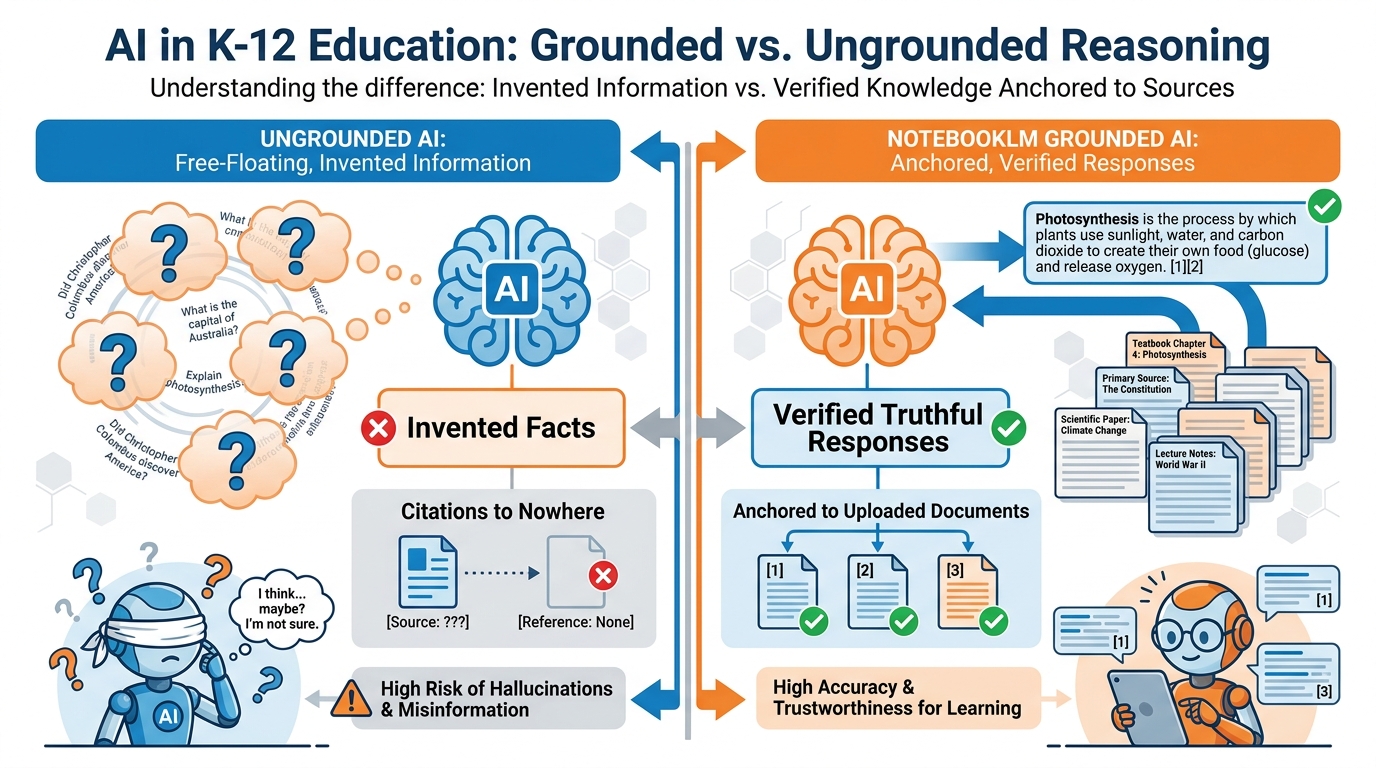
Figure 3:Grounded vs. Ungrounded. When AI can reach outside your sources, it will — and not always reliably. NotebookLM can only draw from what you put in.
There is a second reason this matters specifically for teachers: you have domain expertise that general AI models don’t. You know your students. You know your curriculum standards. You know what worked last year and what didn’t. When you load your own materials into NotebookLM, you are not replacing your expertise with the AI’s — you are giving the AI your expertise to work with. The outputs will be grounded in your knowledge of your students, your school, your subject. That’s not what ChatGPT can do.
44.4 Sources, Notebooks, and the New Research Workflow
A NotebookLM workspace has three core concepts you need to understand: sources, notebooks, and the chat interface.
A source is any document you add to a notebook. It can be a PDF, a Google Doc, a Google Slide deck, a website URL, a YouTube video, or text you paste directly. Each notebook can hold up to 50 sources, and each source can be up to 500,000 words. For perspective: a typical school curriculum guide might be 50-80 pages — NotebookLM handles it completely.
A notebook is the container. Think of it as a project folder with a brain. You might have one notebook per unit you teach, one per course, one per professional development project, one for your thesis, one for your team’s shared reading list. Each notebook is independent — sources in one notebook don’t affect another.
The chat interface is where the magic happens. You ask questions in natural language and NotebookLM responds based only on your sources. It cites its answers. It can distinguish between “this is in your sources” and “this isn’t addressed in your sources.” It remembers the context of the conversation within a session.
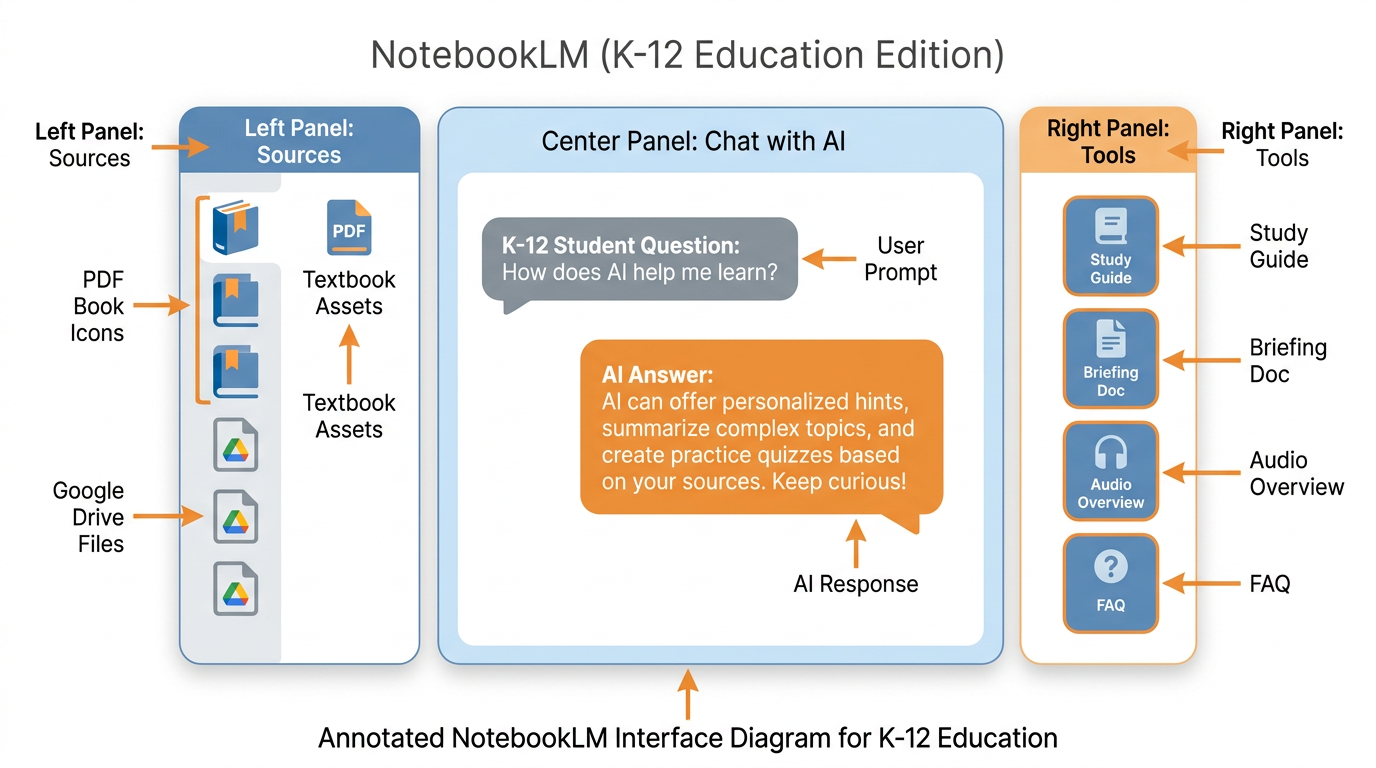
Figure 4:The NotebookLM Interface. Three panels, one purpose: your sources on the left, the conversation in the center, and the generation tools on the right.
The workflow shift is significant. Before NotebookLM, your research workflow probably looked like this: identify relevant documents, read them fully or skim them, take notes separately, try to synthesize across sources, draft your lesson or unit plan. Every step required you to hold information in your head, move between documents, and manually make connections.
With NotebookLM, it looks like this: upload your sources, ask your questions, review the cited answers, use generated study materials as a starting point. The synthesis work that used to take hours can take minutes — not because the AI is doing your thinking for you, but because it eliminates the logistical work of retrieval and cross-referencing, freeing you to do the higher-order thinking.
54.5 Stripping Extraneous Load Without Stripping Germane Load
Now let’s bring in the theory, because understanding why this tool works will help you deploy it more effectively.
In 1988, an Australian educational psychologist named John Sweller published a theory that changed how we think about instructional design. He called it Cognitive Load Theory. The core insight is simple but profound: the human working memory has a limited capacity. When you’re learning, that capacity can be overwhelmed — and when it is, learning stops.
Sweller identified three types of cognitive load:
Intrinsic load is the inherent difficulty of the material itself. Some things are just complex: photosynthesis, the causes of World War I, how to solve quadratic equations. This load is fixed by the nature of the subject and can only be reduced by breaking complex material into smaller chunks or building prerequisite knowledge.
Extraneous load is the cognitive work caused by poor instructional design. Searching a cluttered document. Navigating a confusing interface. Re-reading the same page three times because the writing is unclear. This load adds nothing to learning — it just burns working memory that could have been used for actual understanding. And it is almost entirely preventable.
Germane load is the productive cognitive work of actually learning: forming connections, building mental schemas, applying knowledge to new situations. This is the work you want students (and yourself) to be doing. It’s the load that produces learning.
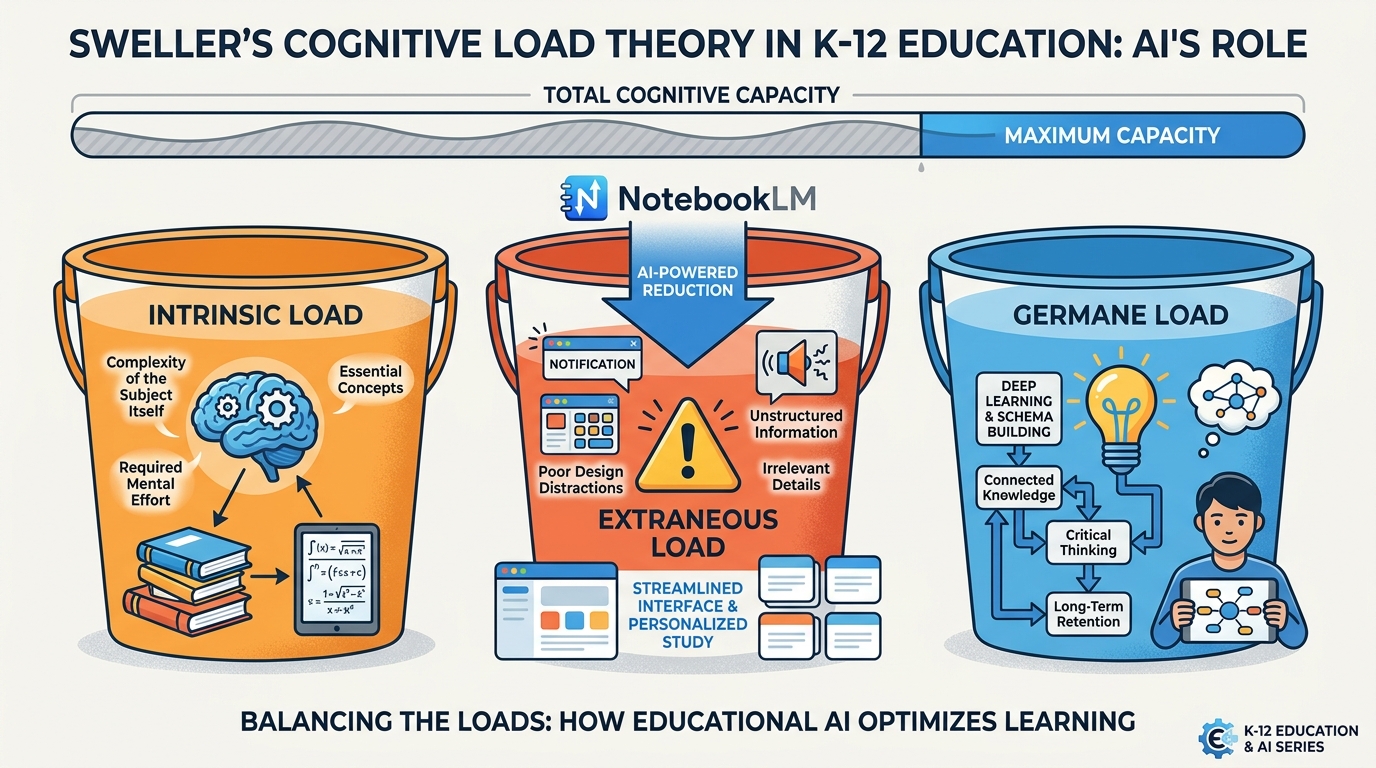
Figure 5:The Three Loads. Your working memory has one tank. What fills it matters. Extraneous load is cognitive waste — NotebookLM eliminates it.
Here’s why this is directly relevant to your PDF graveyard: every minute you spend hunting for a document, re-reading something you’ve already processed, or cross-referencing three tabs simultaneously is extraneous cognitive load. It is not making you a better teacher or a better planner. It is burning finite mental bandwidth on logistics.
NotebookLM eliminates almost all of that extraneous load within a body of material. The retrieval is instant. The synthesis is surfaced. The citations tell you exactly where to look if you want to verify something. What’s left is the germane load — the genuine intellectual work of deciding what to teach, how to sequence it, and what questions to ask students.
Notice what isn’t eliminated: the need for you to think. NotebookLM does not tell you what to prioritize. It does not know your students. It cannot decide whether a concept is developmentally appropriate for your sixth graders. That judgment — that professional wisdom — is entirely yours. What the tool does is clear the path so you can think more clearly about what matters.
The “Expertise Reversal Effect” — An Important Caveat
Cognitive Load Theory includes a nuance worth knowing: the expertise reversal effect. Instructional scaffolds that reduce cognitive load for novices can actually increase load for experts — because experts have to suppress their existing mental models to work within the scaffold’s structure.
For you, as an experienced teacher, NotebookLM may feel redundant for topics you know deeply. You don’t need AI to synthesize a curriculum framework you’ve been teaching from for ten years. But for new topics, new standards, new subjects, or complex interdisciplinary materials — the tool becomes enormously powerful. Use it where your expertise needs support, not where it’s already strong.
64.6 Loading Your First Sources (Five Ways In)
Getting material into NotebookLM is fast. Open a new notebook, click “Add source,” and you’ll see five options:
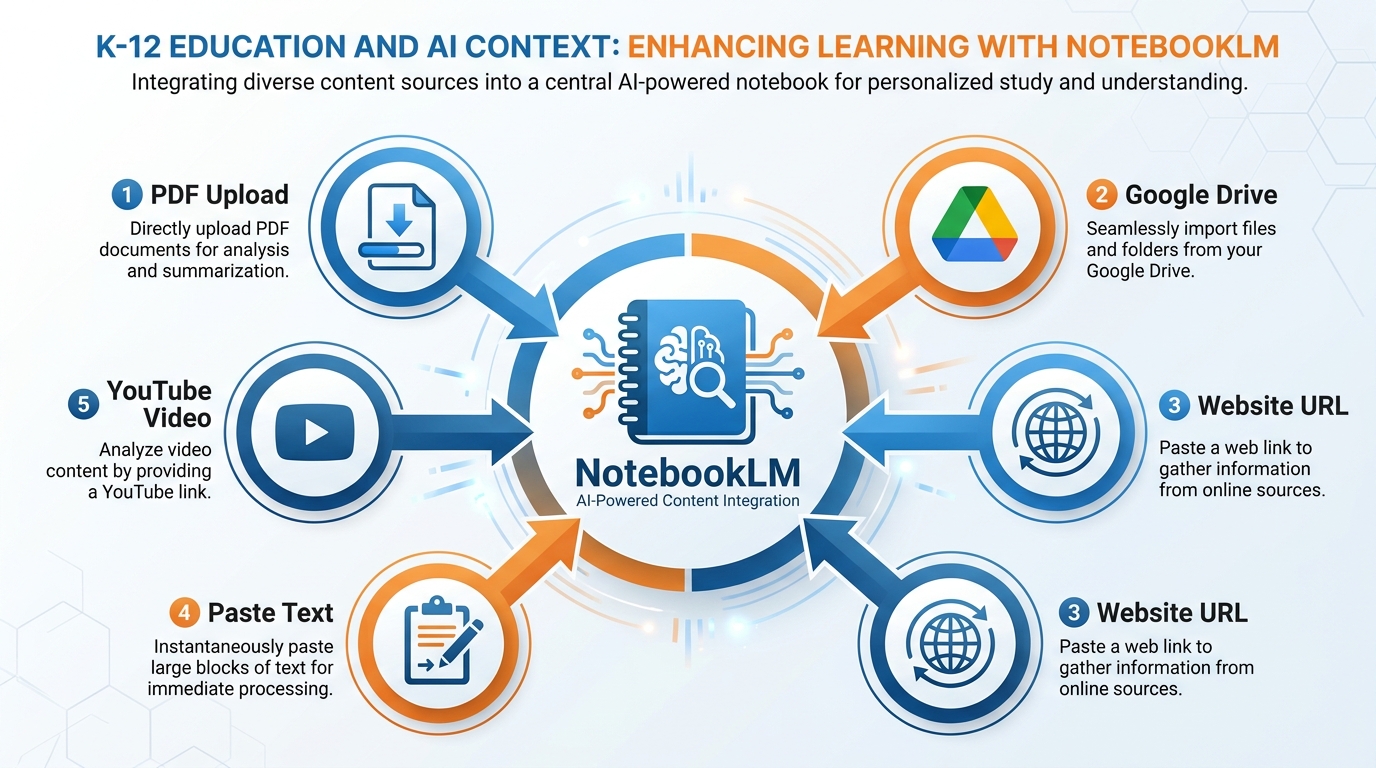
Figure 6:Five ways to load your sources. Any combination works. Most teachers start with PDFs and Google Docs they already have.
Method 1: PDF Upload. Drag and drop or browse to any PDF on your device. Curriculum guides, journal articles, textbook chapters, scanned handouts — if it’s a PDF, it loads. This is the fastest way to get existing materials into NotebookLM.
Method 2: Google Drive. Connect your Drive and select any Google Doc or Google Slide deck. If your school’s curriculum materials live in Drive (and most do), this is the most seamless workflow. The integration is direct — no downloading, no converting.
Method 3: Website URL. Paste a URL and NotebookLM will scrape and process the page content. This works well for articles, academic resources, government education sites, and news pages. It does not work for pages that require login, pages behind paywalls, or dynamic JavaScript-heavy sites.
Method 4: Paste Text. Copy any text — a passage from a book, notes from a meeting, a transcript, anything — and paste it directly into a text source. This is useful for content that doesn’t come in a clean document format.
Method 5: YouTube Video. Paste a YouTube URL and NotebookLM will process the video’s transcript. This works for any video with captions — professional development talks, TED talks, documentary clips, lectures. It’s a remarkably powerful feature for teachers who use video as course material.
Load your pacing guide, standards documents, and unit frameworks. Ask NotebookLM to identify alignment between your planned activities and specific standards. Have it generate vocabulary lists, essential questions, or prerequisite knowledge maps.
Load research articles or professional development materials. Ask for key takeaways, have it surface the implications for classroom practice, or generate a briefing doc you can share with your department.
Load your instructional content — textbook chapters, reading passages, primary sources. Let NotebookLM generate study guides, FAQ docs, and audio overviews students can use to review.
One practical note: be thoughtful about what you upload. If a document contains personally identifiable student information — grades, names, assessment results — don’t put it in a cloud-based tool without confirming your district’s data privacy policies. Use anonymized or aggregate data only. For curriculum content, instructional materials, and research, there are generally no concerns.
74.7 Asking Questions That Actually Get Answers
Here is where most people get stuck the first time they use NotebookLM. They open the chat panel, type something vague, get a vague answer, and conclude the tool isn’t very useful. The problem isn’t the tool. The problem is the question.
Asking an AI to “tell me about this document” is like walking into a library and asking the librarian to “tell you about books.” The question is too broad to produce a useful answer. Good questions are specific, contextual, and actionable.
Here are question types that reliably produce powerful results:
Extraction questions: “What does this curriculum guide say about teaching argument writing in grade 7?” “What evidence does this article cite for spaced practice?” These pull specific information from your sources.
Comparison questions: “How does the district framework approach reading fluency compared to the research article I uploaded?” “What does each of these three sources say about differentiation?” This is where NotebookLM’s ability to synthesize across multiple sources really shines.
Gap-finding questions: “Are there any learning objectives mentioned in the standards document that aren’t addressed in my unit plan?” This is genuinely time-saving — it finds misalignments you might miss in a manual review.
Generation questions: “Using the vocabulary from this textbook chapter, create a list of ten Tier 2 academic words suitable for a sixth-grade classroom.” “Based on these three sources, generate five essential questions for the unit.”
Teaching questions: “How would I explain the concept of [X] from this document to a student who has no prior background in science?” “What analogies does this text use, and can you suggest better ones for my ninth graders?”
84.8 Auto-Generated Study Guides, Briefing Docs, and FAQs
Once your sources are loaded, NotebookLM offers a panel of tools it can automatically generate. These are not one-size-fits-all outputs — they’re intelligent summaries and structures drawn from your specific sources.
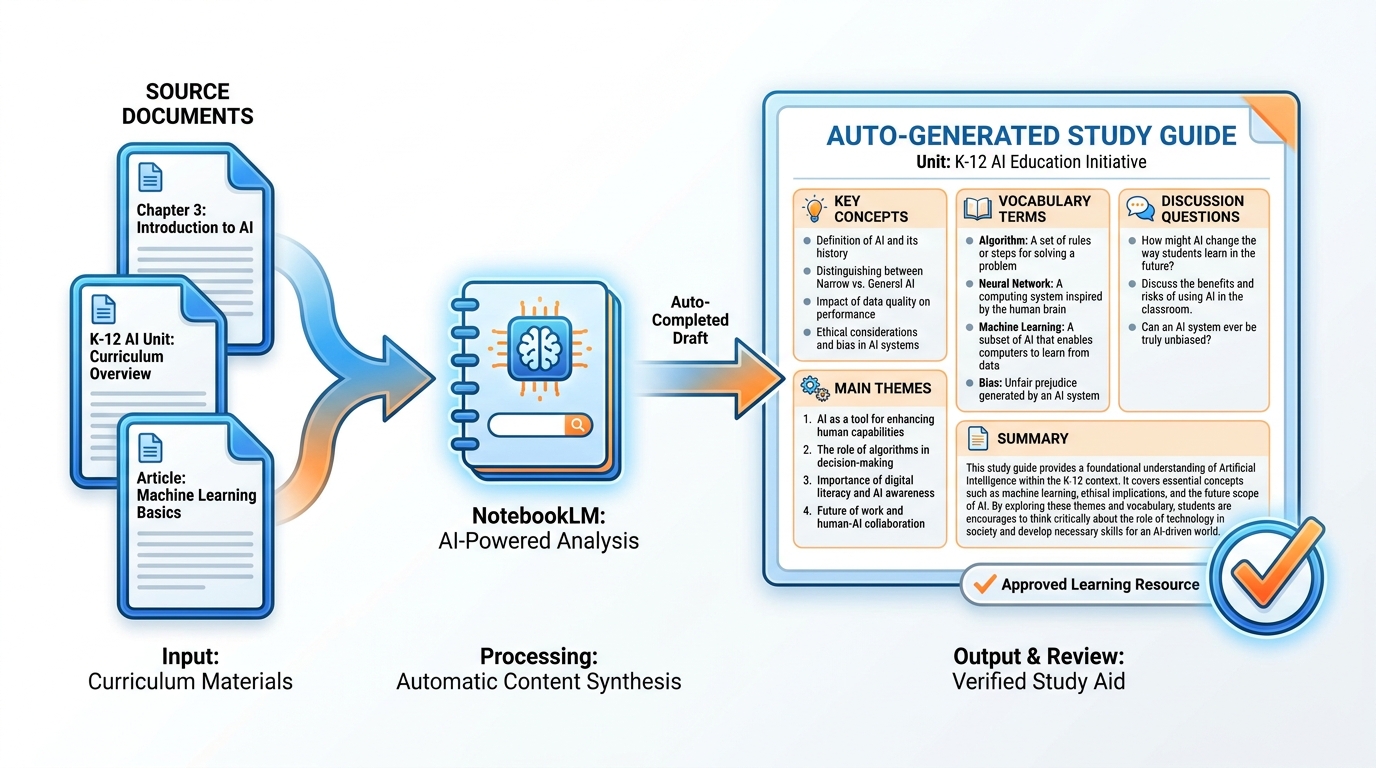
Figure 7:Auto-generated, source-grounded. Every item in this study guide traces back to a specific passage in your uploaded materials. Nothing invented.
The Study Guide generates a structured overview of key concepts, definitions, and themes from your sources. For a teacher, this is valuable in two directions: as a starting point for planning your own instruction, and as a student-facing resource you can adapt and share. The study guide will be organized around whatever structure your sources have — if you’ve loaded a unit-level curriculum guide, the output reflects that unit’s structure.
The Briefing Doc is an executive-level summary: this is what the documents say, in compressed form. Think of it as the thing you’d want to read before a department meeting where you’re expected to discuss these materials. For new teachers, it’s a way to get up to speed on curriculum frameworks quickly. For department chairs, it’s a way to prepare for professional conversations.
The FAQ generates a list of questions-and-answers structured around what the documents most frequently address. It reads the sources and surfaces the questions a reader is likely to have — which is often different from what you’d come up with yourself. This is useful for anticipating student questions, identifying gaps in your planned explanation, and designing formative check-ins.
The Timeline (when your sources contain chronological content) generates a structured timeline of events. History teachers, this is for you. Load your primary sources and secondary readings, and NotebookLM constructs a timeline you can review, adapt, and use to build student-facing materials.
One important caveat: these auto-generated materials are starting points, not finished products. They are grounded in your sources, but they don’t know your students, your school, or the instructional context. Before sharing anything with students, review it — verify accuracy, adjust the language level, and add the local context that only you can provide.
94.9 The Mind Map Trick — Visualizing What’s in Your Sources
There’s a lesser-known feature in NotebookLM that is worth your attention: the Mind Map view.
When you ask NotebookLM to generate a mind map of your sources, it produces a visual, branching diagram showing how the key concepts in your materials are related. For visual thinkers — and for teachers designing visual learning experiences — this is genuinely useful.
But here’s the more interesting application: use it diagnostically. Before you plan a unit, load your sources and generate a mind map. Look at what the AI surfaces as the central concepts and the connections between them. Compare it to your own mental model of the unit. Where does it match? Where do you see gaps? Where are you surprised by what the AI treated as peripheral versus central?
This is not about letting the AI tell you how to think about your subject. It’s about using the AI as a cognitive mirror — a way of externalizing the structure of your sources so you can reflect on it from the outside.
For students, mind maps generated from notebooklm
104.10 Words + Pictures, Done Right — The Mayer Principles for AI-Generated Media
You know the moment. You’re watching a PowerPoint presentation and the slide has sixty words on it, all read aloud by the presenter while you try to both listen and read. Within thirty seconds, you’ve stopped absorbing either. You’re processing nothing useful.
This isn’t a personality failure. This is a predictable consequence of how human cognitive architecture works. And it’s exactly what Richard Mayer’s Cognitive Theory of Multimedia Learning (2001) describes with extraordinary precision.
Mayer’s framework identifies the rules for how words and pictures should be combined in learning materials to maximize understanding rather than overwhelm it. These rules were derived from laboratory experiments, but they apply directly to AI-generated educational content — because AI can now generate multimedia at scale, and if we don’t design it well, we’ll scale bad design.
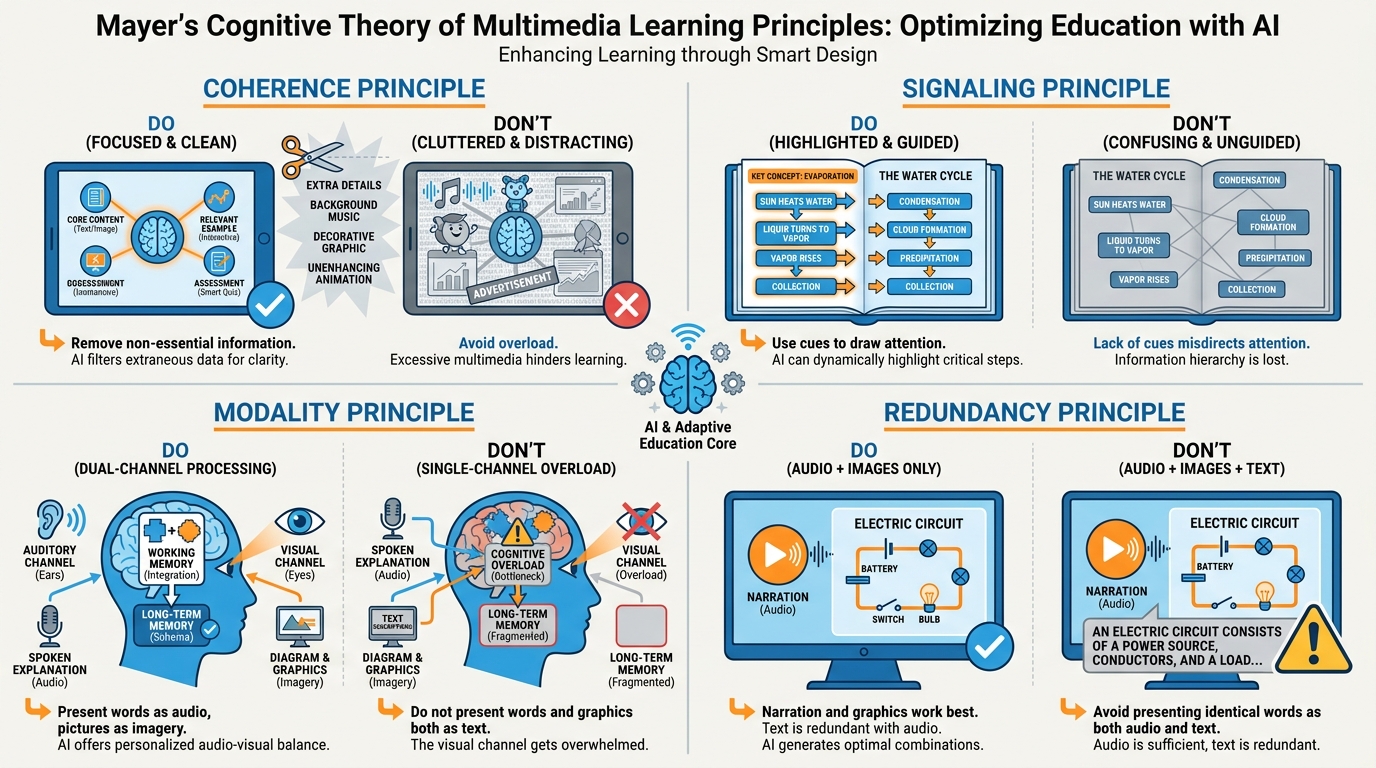
Figure 8:Mayer’s Four Principles. These aren’t just design guidelines — they’re descriptions of how your students’ brains process multimedia. Violate them and you’ll watch comprehension drop.
Here are the four principles most directly relevant to AI-generated educational content:
The Coherence Principle — Less is more. Adding interesting but irrelevant material — an extra infographic, a related-but-tangential video clip, decorative background music — actually reduces learning by occupying working memory that should be focused on the core content. When you use NotebookLM to generate study materials, resist the urge to add everything that’s interesting. Curate to the essential.
The Signaling Principle — Guide attention explicitly. Use headings, bold text, numbered steps, and visual cues to tell learners where to direct their attention. Unmarked, undifferentiated text forces readers to do organizational work that is purely extraneous load. When you review AI-generated materials before sharing with students, check: does the formatting signal clearly what matters?
The Modality Principle — Narration + images works better than text + images. When information is delivered through both the visual and auditory channels simultaneously (a labeled diagram with spoken explanation), learners process more effectively than when both word and image compete for the visual channel (text on a screen explaining a picture on the same screen). This is the principle that makes NotebookLM’s Audio Overview feature especially powerful — but we’ll get to that in section 4.11.
The Redundancy Principle — Don’t say the same thing two ways at once. Reading a paragraph aloud while the learner reads the same paragraph visually is not reinforcement — it’s interference. The two streams compete in working memory. When you have an audio overview, don’t also provide a verbatim transcript as the primary reading material. Give learners one clear channel to focus on.
Mayer Principle Violations in the Wild
Common violations you can probably recognize from your own experience:
❌ Coherence violation: A unit review slideshow with 12 slides, half of which are “additional context” that isn’t directly tested or essential.
❌ Signaling violation: A study guide that is one long paragraph without headers, bullets, or any visual organization.
❌ Modality violation: A slide presentation where every bullet point is read verbatim aloud while students read it off the screen. (Sound familiar?)
❌ Redundancy violation: An audio overview playing while a full text transcript scrolls on screen. Students should choose: listen or read, not both at once.
The good news: NotebookLM’s generated formats (Audio Overview, Study Guide, Briefing Doc) are already structured in ways that tend to respect these principles — if you deploy them thoughtfully.
When you use AI tools to generate learning materials, you inherit the responsibility to apply these principles. AI can generate materials quickly; whether those materials will actually support learning depends on you. Run every AI-generated output through a Mayer check before sharing it with students.
114.11 Audio Overviews: The “AI Podcast” That Reviews Your Content for You
This is the feature that makes people stop and say “wait — it does what?”
NotebookLM has a feature called Audio Overview that takes your sources and generates a 10-20 minute AI-produced podcast episode. Two AI hosts have a genuine conversation about your materials — they explain concepts, use analogies, ask each other questions, and summarize key ideas in the kind of flowing conversational style you’d hear on an NPR segment or a good educational podcast.
This is not text-to-speech. It’s not a robot reading a summary aloud. The two AI voices genuinely converse — one explains, the other asks a clarifying question, the first provides the example, the second notes what this means for the bigger picture. The quality is remarkable.
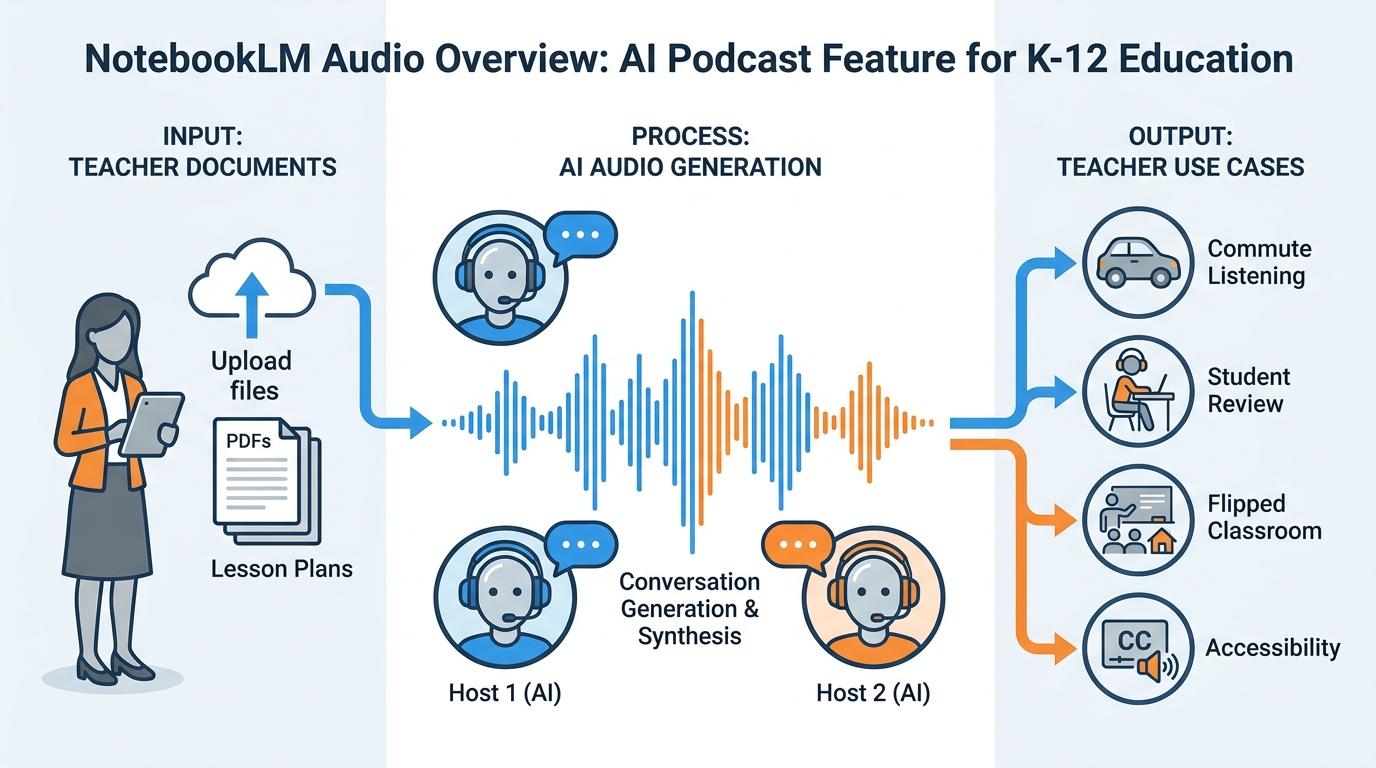
Figure 9:The AI podcast for your curriculum. You load the sources; two AI hosts have the conversation. Fifteen minutes of audio review, generated from your specific materials.
For teachers, this is useful in at least four ways:
For your own learning. Load the professional development reading you’ve been meaning to get to for three months. Generate an audio overview. Listen on your commute. This is not a shortcut — listening to a 15-minute synthesized discussion of an article activates the Modality Principle in your favor. You’ll retain more from the audio than from a skim-read at midnight before a meeting.
For student review. After you’ve built a notebook for a unit, generate an audio overview and share the link with students. They can listen while doing dishes, on the bus, before a test. It’s not a replacement for reading or primary instruction — it’s a review modality that reaches students who process better through listening, and it meets students in the audio-first media environment where they already live.
For flipped classroom. Load the textbook chapter or primary sources for the next unit. Generate the audio overview. Assign it as pre-reading (pre-listening) before the class session. Students arrive already familiar with the key concepts and vocabulary, and your class time can focus on discussion, application, and deep work rather than initial delivery.
For accessibility. For students with reading difficulties, visual impairments, or language processing challenges, an audio overview of your content materials — generated in minutes and based on your exact sources — is a genuine accommodation that would have taken hours to produce manually.
What the Audio Overview Can’t Do
The Audio Overview is impressive but not magical. It cannot:
Be customized to a specific reading level mid-generation (though you can regenerate with different source selections)
Include interactive elements or pause for comprehension checks
Guarantee accuracy beyond what’s in your sources
Replace primary instruction for complex concepts that require worked examples or visual demonstration
Always preview the audio overview before sharing with students. Generate it, listen to the first few minutes, verify it accurately represents your materials. Occasionally it will emphasize a minor point over a major one, or use an analogy that doesn’t quite fit. A five-minute preview protects against sharing something that would mislead students.
124.12 Video Overviews and Visual Learning
Beyond audio, NotebookLM has introduced Video Overview capabilities — a feature that generates short, structured visual summaries of your sources, combining AI-narrated explanation with relevant visual elements.
This connects directly back to Mayer’s Modality Principle: learning from words and pictures presented through complementary channels (auditory narration + visual content) consistently outperforms learning from either channel alone. A video overview doesn’t just tell students what’s in the material — it shows and tells simultaneously, engaging both the verbal and visual processing systems.
For teachers, this expands the palette of review and preview materials available without requiring hours of video production. Upload your sources, generate a video overview, and share it as a lesson preview, review tool, or accessibility accommodation.
A few practical notes: video generation takes longer than text or audio generation. Not all source types render equally well as video — narrative-heavy text sources may produce less visually compelling output than structured or concept-rich sources. As with audio, preview before sharing.
The broader principle here is platform thinking: your sources, loaded once into a NotebookLM notebook, can be transformed into multiple formats (study guide, FAQ, briefing doc, audio, video) serving different learning modalities and contexts. You do the work once. The materials serve students repeatedly, in the format that works best for each of them.
134.13 Sharing Notebooks Safely with Students
NotebookLM allows you to share notebooks with others, but the sharing controls are important to understand before you do.
By default, notebooks are private — only you can see them. When you choose to share, you have options: you can share the notebook for collaborative access (the other person can add sources, edit, see everything), or you can share a link to the notebook’s outputs without giving access to the underlying sources.
For sharing with students, the standard recommendation is to share the notebook link rather than full collaborative access. This gives students the ability to interact with the chat interface and review generated materials without being able to see your original source documents, modify the notebook, or access curriculum materials beyond what you’ve explicitly generated for them.
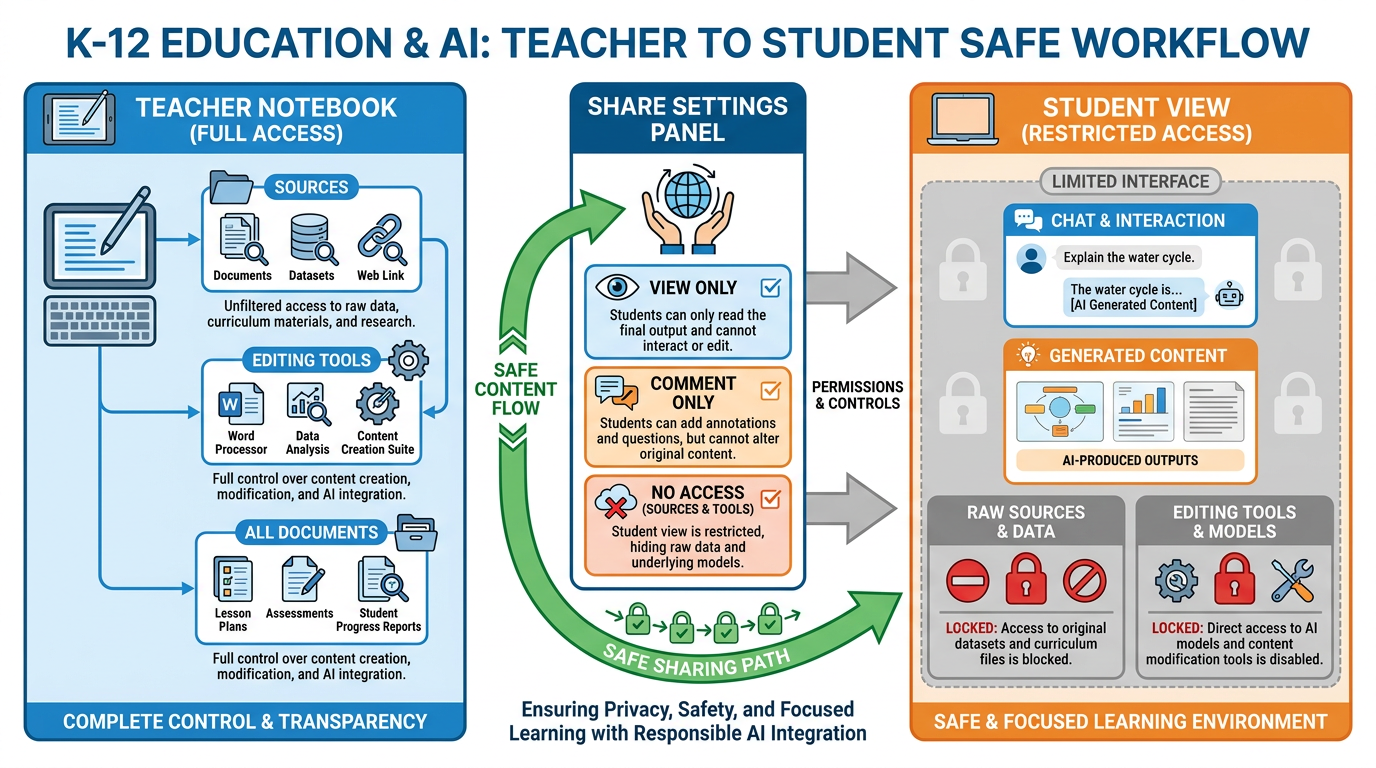
Figure 10:Sharing safely. Students get the conversational interface and generated materials. Your original sources stay protected.
There are several considerations before sharing with students:
Privacy and FERPA: The sources you upload to NotebookLM are processed by Google’s servers. For curriculum content, instructional materials, and research documents, this is generally unproblematic. Do not upload documents containing student data — names, grades, assessment results, IEPs, or any personally identifiable information. These documents should never leave systems with appropriate data security protections.
Google account requirements: In most configurations, students will need a Google account to interact with a shared notebook. If your school uses Google Workspace for Education, students likely already have these accounts. Check with your technology coordinator before assuming students have access.
Copyright: If you’ve uploaded copyrighted textbook chapters or journal articles, understand that you’re uploading those materials to a third-party service. Fair use considerations for educational purposes typically apply, but consult your school’s technology and copyright policies.
Age considerations: Confirm your district’s policies regarding student use of AI tools, particularly for younger students. Google’s terms of service and your district’s student data privacy agreements should guide which grade levels can use which tools.
144.14 Curriculum-Wide Notebooks: A Whole Year of Teaching, Searchable
Here’s where everything comes together. Everything we’ve discussed — grounded AI, cognitive load reduction, source-based study materials, audio overviews, safe sharing — scales to the level of an entire curriculum year.
Imagine this: a single NotebookLM notebook containing every source document for a full academic year. Your pacing guide. Every unit framework. All the primary source documents for the semester. The research articles that informed your instructional approach. The professional development readings from your PLCs. The state standards. The district assessment frameworks.
In one notebook. Searchable. Queryable. Available to you in natural language at any moment in your planning process.
“What standards do I have left to address in the third quarter?”
“Which units include primary source documents from the 1800s?”
“What vocabulary did I introduce in Unit 2 that I could reinforce in Unit 5?”
“Are there any standards related to argument writing that span multiple units?”
Questions like these used to require you to hold the entire arc of your curriculum in your head, or dig through multiple documents manually. With a curriculum-wide notebook, you ask the question and your own materials answer you back — in seconds, with citations.
For department chairs and instructional coaches, this scales further: a shared notebook containing the curriculum documents for an entire course, accessible to every teacher on the team, with a shared chat interface for exploring alignment, gaps, and connections across the team’s collective materials.
This is not speculative technology. This is available, free, today. The only investment required is the time to load your sources — and most teachers find the first notebook takes about thirty minutes to set up, after which the return on that investment starts immediately.
15Chapter Summary
NotebookLM is a grounded AI tool — one that reasons only from sources you provide, cites its answers, and will tell you honestly when something isn’t in your materials. This makes it fundamentally different from general AI assistants, and the difference matters enormously for educational use cases where accuracy isn’t optional.
Cognitive Load Theory (Sweller, 1988) explains why NotebookLM is cognitively effective: it eliminates the extraneous load of document hunting, cross-referencing, and synthesis logistics, freeing your working memory for the germane load of genuine curriculum thinking.
Mayer’s Cognitive Theory of Multimedia Learning (2001) explains how to deploy the tool’s outputs effectively: respect the Coherence, Signaling, Modality, and Redundancy principles, and AI-generated materials can genuinely enhance learning rather than overwhelming it.
The practical toolkit includes: loading sources via five methods, asking specific questions that produce cited answers, generating study guides, briefing docs, FAQs, mind maps, audio overviews, and video overviews, sharing notebooks safely with students, and building curriculum-wide notebooks that make an entire year of teaching searchable.
The starting point is notebooklm
16📝 Case Study & Discussion Board (2 pts)
Read the following scenario, then respond in the discussion board.
Scenario: The Overwhelmed Department Chair
Maria is a ninth-grade English teacher who has just been asked to lead her department’s curriculum alignment project. By the end of the semester, her team needs to produce a revised scope and sequence that aligns their current instructional units to the new state ELA standards. Maria has the following materials: the new 78-page state ELA standards document, the current scope and sequence (a 42-page Google Doc), six unit plans from different teachers (each in a separate PDF), and three professional reading articles about standards-aligned instruction that the district shared at last year’s opening day workshop.
Maria tries to begin the alignment work manually. After two evenings of reading, cross-referencing, and taking notes, she has a rough sense of some gaps but no systematic picture of the alignment — and she hasn’t even touched three of the unit plans yet. She’s starting to wonder if the timeline is realistic.
Discussion Prompt:
Using what you know about NotebookLM and Cognitive Load Theory, explain specifically which type(s) of cognitive load are consuming most of Maria’s working memory in her current approach. How is the manual process structured in a way that maximizes extraneous load?
Design a NotebookLM-based workflow that Maria could use to accomplish this same alignment task. Be specific: what sources would she load, what questions would she ask, and what outputs would she generate? Explain how each step shifts load from extraneous to germane.
Where would Maria’s expertise still be irreplaceable in this workflow — what judgment calls would the AI genuinely be unable to make?
Discussion Guidelines:
Write a substantive main post (minimum 200 words) that directly engages all three prompts.
Include at least one scholarly or credible citation (Sweller, Mayer, or another relevant source) to support a specific point you make.
Respond to at least two peers with substantive feedback that goes beyond agreement — engage with their specific workflow design, add a consideration they may have missed, or offer a constructive alternative.
17🧪 Hands-On Lab: Build a Unit-Level Curriculum Notebook (10 pts)
Objective: Build a working NotebookLM notebook for one of your teaching units, complete with at least three loaded sources, a generated study guide, and an audio overview.
Estimated time: 60–90 minutes
17.1Part 1: Set Up Your Notebook (10 minutes)
Step 1: Navigate to notebooklm
Step 2: Click “Create new notebook” in the top right corner.
Step 3: Name your notebook clearly. Use a format like: [Course] Unit [#]: [Topic] — for example, US History Unit 3: The Civil War or 8th Grade Math Unit 5: Linear Functions. A clear name will matter when you have multiple notebooks.
17.2Part 2: Load Your Sources (20 minutes)
Step 4: Click “Add source” and load at least three sources relevant to your chosen unit. Your sources should include at least one from each of these categories:
A structured document (your unit plan, pacing guide, or curriculum framework) — use PDF upload or Google Drive integration
An instructional content source (textbook chapter, reading passage, primary source document, or article) — use PDF or Google Drive
A web or video source (a website URL with relevant content, or a YouTube educational video related to your unit topic)
Step 5: After each source loads, read the brief summary NotebookLM generates. Notice what it identifies as the source’s key concepts.
17.3Part 3: Interrogate Your Sources (15 minutes)
Step 6: In the chat panel, ask at least three questions that are genuinely useful for your unit planning. Try to include:
One extraction question (finding specific information from a specific source)
One comparison question (asking how two sources relate or align)
One generation question (asking NotebookLM to produce a list, set of questions, or organized structure based on your sources)
Step 7: For at least one answer, click the citation to verify that it actually traces back to the source passage. Make note of how this feels different from using a general AI assistant.
17.4Part 4: Generate Study Materials (15 minutes)
Step 8: Use the Study Guide tool in the tools panel. Download or copy the generated study guide.
Step 9: Review it critically. What does it get right? What did it miss or de-emphasize? What would you add or change before sharing it with students? Make at least three notes.
Step 10: Use the Briefing Doc tool. Read the output. Is this a document you could share with a substitute teacher or a parent to explain what this unit covers?
17.5Part 5: Generate an Audio Overview (15 minutes)
Step 11: Click “Generate audio overview” in the tools panel. Wait for the generation to complete (typically 2–4 minutes).
Step 12: Listen to at least five minutes of the audio overview. As you listen, ask yourself: Does this accurately represent my unit? Would a student who listened to this arrive at class better prepared? What would you add to the sources to improve the output?
17.6Group Build: AI as Curriculum Organizer
In your group, you will use AI to identify a real curriculum organization problem, solve it with NotebookLM, and present your work to the class.
Step 1 — Identify the problem: Use Gemini (not NotebookLM) as a thinking partner. Describe your group’s collective teaching context — grade levels, subjects, team structure. Ask Gemini to help you surface and sharpen one genuine curriculum organization challenge: a gap, misalignment, redundancy, or resource retrieval problem your team actually experiences.
Step 2 — Build the solution: Create a shared NotebookLM notebook. Load the documents most relevant to the problem you identified. Use the chat and generation tools to produce a concrete output: a cross-unit alignment map, a scope-and-sequence gap analysis, a shared resource library with study guide, or a department briefing doc.
Step 3 — Discuss with the class: Be prepared to explain what problem you identified, how you used AI to investigate it, what you built, and what the AI got right or missed. What would you do differently? What would you do next?
17.7Deliverable
Submit a brief reflection (250–400 words) addressing:
What unit did you choose, and what three sources did you load?
Which question you asked produced the most useful answer, and why?
What did the audio overview get right, and what would you change about it?
How would you use this notebook in your actual teaching — and what would you add to it next?
Points: 10
18🎯 In-Class Assignment: NotebookLM (10 pts)
Details and instructions will be provided in class.
Points: 10