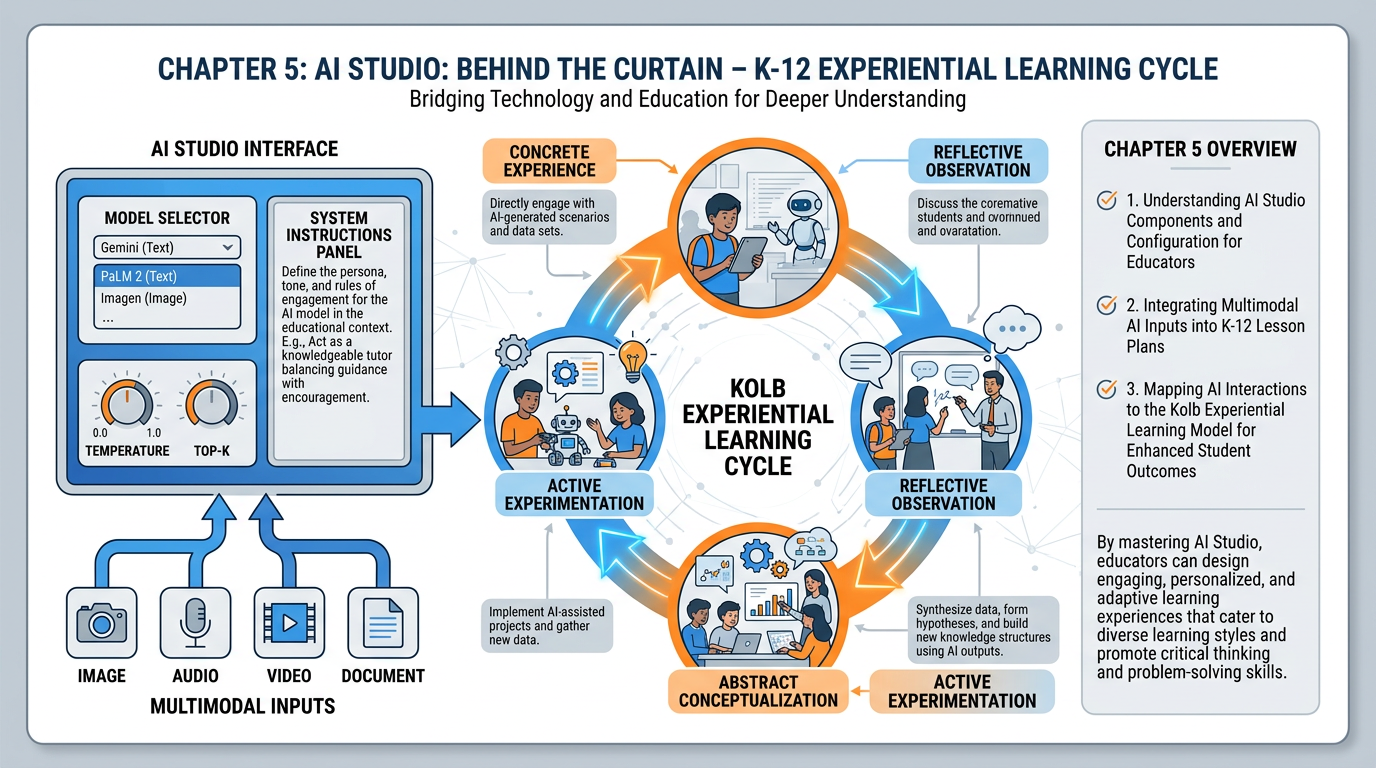
Figure 1:Chapter 5 at a Glance. AI Studio, Kolb’s cycle compressed, multimodal magic, and the knobs that actually matter — mapped together. By the end of this chapter, aistudio.google.com will feel like a second home.
Gemini is the elegant front door. AI Studio is the laboratory in the back of the building. This is where the real power lives.
There’s a version of this chapter that starts with a definition. “AI Studio is Google’s web-based interface for developers and researchers to experiment with Gemini models.” That version is accurate, boring, and will not help you teach better.
Here’s a version that might.
Imagine you’ve been using a really good espresso machine — push the button, perfect coffee arrives. It works beautifully. But one day, the barista shows you into the back room, where there’s a roasting drum, three different grinders, a humidity gauge, a temperature controller, and a wall of single-origin beans from seven countries. Suddenly the espresso machine in the lobby makes sense at a completely different level. You understand why it works. You understand what levers are being pulled. And you realize you could now make something the lobby machine could never produce.
That’s the difference between Gemini and AI Studio.
This chapter is about the back room.
15.1 The Difference Between Gemini and AI Studio (And When to Use Each)
Let’s be precise, because imprecision here causes real confusion.
Gemini — at gemini.google.com — is a consumer-grade AI assistant. It’s designed for anyone. You open it, you type, you get a thoughtful response. It’s connected to your Google apps (Gmail, Calendar, Drive) through Personal Intelligence. It has a clean, conversational interface with minimal settings visible. The design philosophy is: “get out of the way and let the AI be helpful.”
AI Studio — at aistudio.google.com — is a developer and researcher interface for the same underlying Gemini models. It exposes the machinery. You can select which exact version of Gemini you’re talking to. You can set system instructions that run before every conversation. You can adjust temperature, token limits, safety settings, and response format. You can upload entire documents, images, audio files, and video. You can compare model outputs side by side. You can see token counts in real time.
Same engine. Different dashboards.
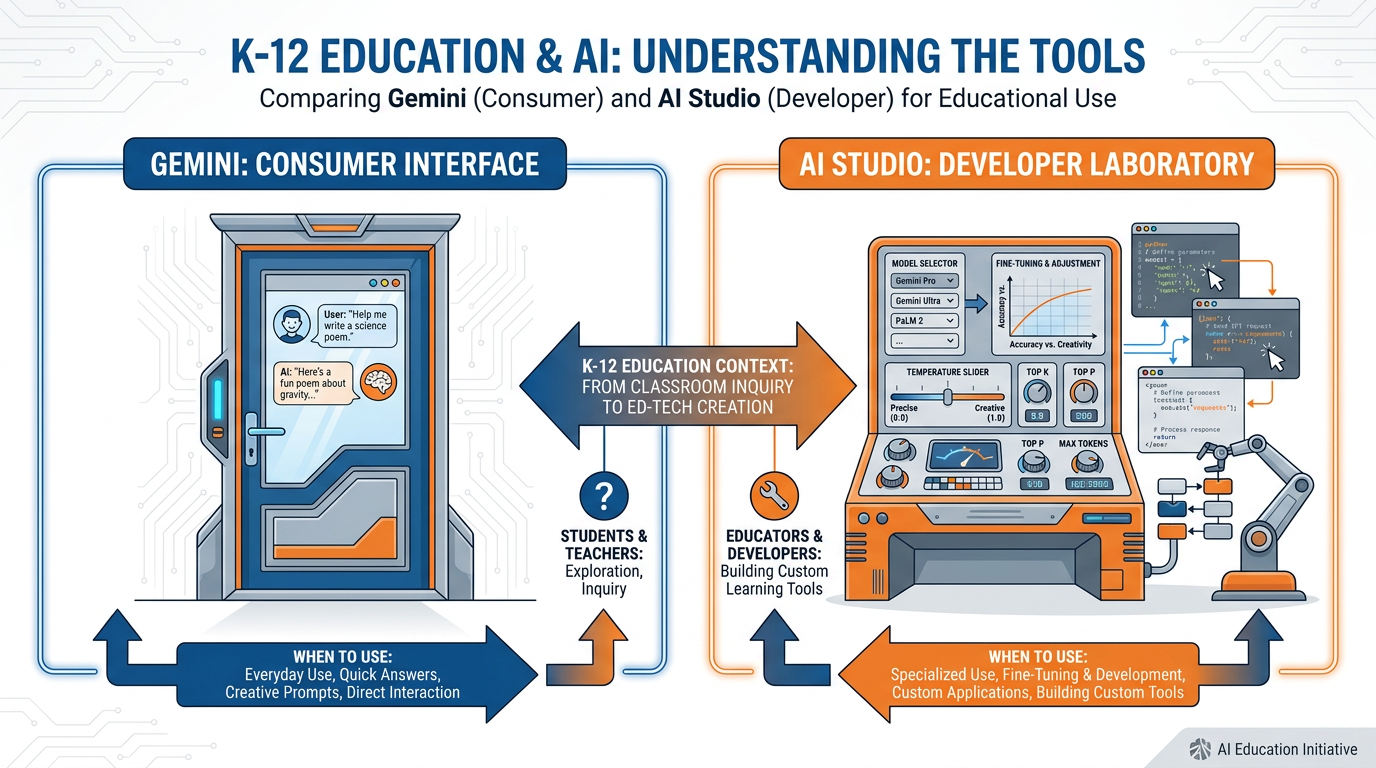
Figure 2:Front Door vs. Laboratory. Gemini is designed for conversational ease. AI Studio exposes the controls. Same models, different interfaces — and dramatically different possibilities.
So when do you use which?
You want conversational intelligence.
Quick explanations, summaries, and ideation
Leveraging your connected apps (Gmail, Drive, Calendar)
Students doing open-ended chat tasks
Email drafts, meeting prep, daily assistant tasks
Anything where “just works” is the goal
Gemini is your everyday car. It starts, it drives, it gets you there.
You need to go under the hood.
Building a reusable Gem or system-prompted workflow
Uploading large documents (whole textbooks, entire units)
Testing how different models handle the same task
Working with images, audio, or video as inputs
Comparing outputs at different temperature settings
Building a multimodal grading or feedback workflow
Doing anything where precision and control matter
AI Studio is your professional kitchen. The ingredients are the same, but you’re the chef.
Here’s the practical rule: start with Gemini, graduate to AI Studio when you need more. You’ll know when you need more. You’ll have a task that Gemini’s interface can’t quite handle — a document that’s too long, a workflow that needs a persistent system instruction, a comparison you want to run across two models. That’s your signal to open the laboratory door.
25.2 Setting Up aistudio.google.com
This is the shortest important section in the book. Go to aistudio.google.com. Sign in with your personal Google account (not your school account — school accounts often restrict AI Studio access).
That’s it. You’re in.
No download. No install. No waiting list. The most powerful AI development interface Google has ever built is a browser tab away.
When you land, you’ll see a few things:
Create new prompt — this is your main workspace
My prompts — your saved experiments
Prompt gallery — pre-built examples for common use cases
Click “Create new prompt.” This opens your workspace. Take 60 seconds to look around before doing anything. You’ll see a large text area in the middle (your prompt/conversation space), a model selector in the top left, and a settings panel on the right with temperature, token limits, and safety settings. At the bottom left, there’s an upload button for files.
You now have access to the same interface researchers at Google use to test new model capabilities. Let that land for a second.
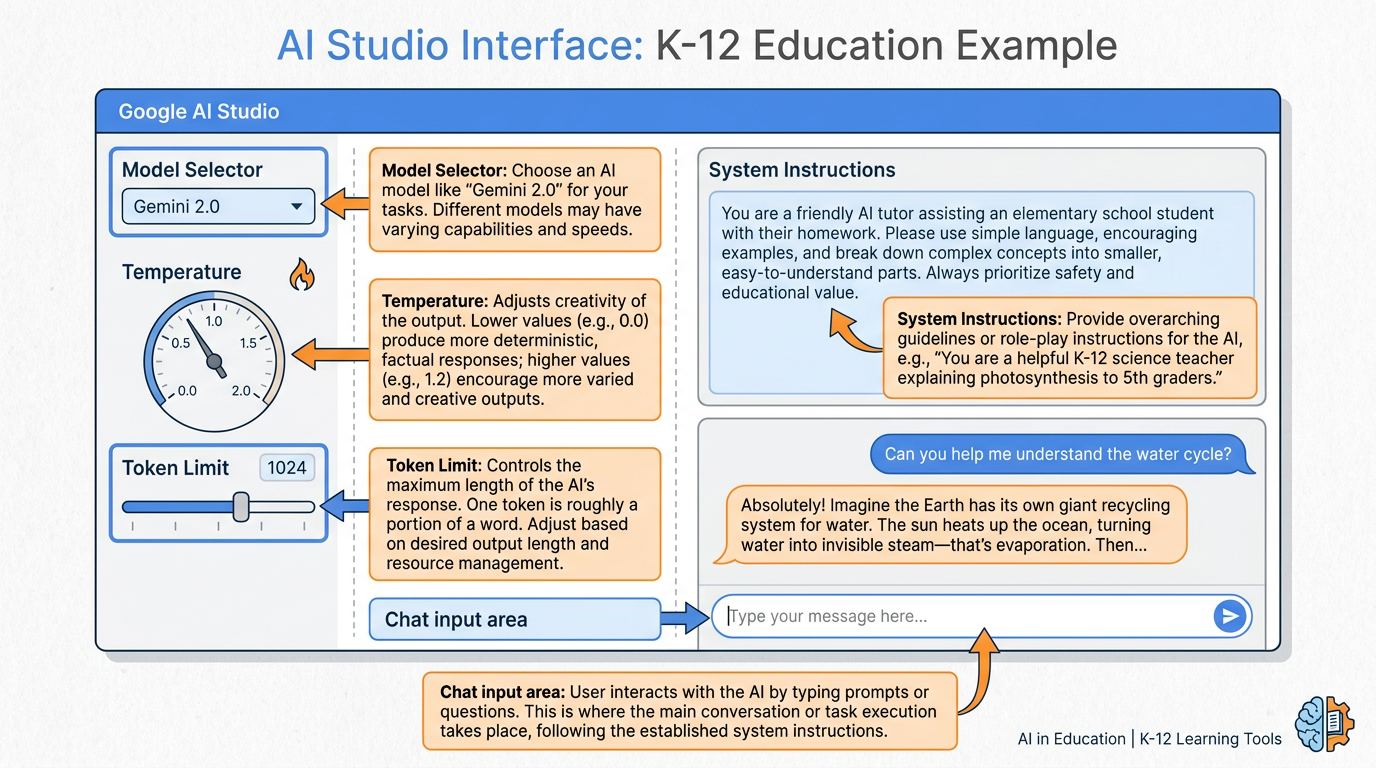
Figure 3:Inside AI Studio. Every component labeled. The Model Selector chooses which Gemini version you’re talking to. Temperature controls creativity vs. precision. Token Limit caps the response length. System Instructions run invisibly before every conversation.
35.3 The Knobs That Matter: Model, Temperature, Token Limits
There are three controls you’ll actually use in 90% of your AI Studio work. Everything else is refinement. Let’s make these concrete.
3.1The Model Selector
At the top of your AI Studio workspace, there’s a dropdown showing which Gemini model you’re currently using. As of 2026, you’ll see options like:
Gemini 2.5 Pro — the most capable model. Best at complex reasoning, nuanced writing, and difficult analysis. Slower and costs more tokens.
Gemini 2.0 Flash — the fast, efficient model. Excellent for most educational tasks. Great response time, minimal delay.
Gemini 1.5 Pro — still available, with the longest context window (1 million tokens). Ideal for feeding it very long documents.
The practical question is always: which tool fits this job? A recipe question doesn’t need a surgeon. A complex ethical argument analysis doesn’t need a sketchpad. Match the model to the task.
3.2Temperature
Temperature is the most misunderstood control in AI Studio. Here’s what it actually means.
Think about the difference between a GPS turn-by-turn navigator and a jazz musician. The GPS does exactly what the map says. No improvisation. No creativity. Every time you ask it how to get to the airport, it gives you the same answer, because that’s the right answer. The jazz musician, by contrast, has internalized the scales and chord patterns so deeply that she can produce something new every single time she sits down — brilliant variation built on deep structure.
Temperature 0 is the GPS. Temperature 2 is the jazz musician after her third espresso.
At temperature 0, the model always chooses the most statistically likely next word. Responses are consistent, predictable, and factually safe. This is what you want for math problems, historical facts, step-by-step instructions, and anything where there is a right answer.
At temperature 1.5–2.0, the model introduces genuine randomness into its word choices. Responses are more varied, more creative, sometimes brilliant, sometimes off-the-wall. This is what you want for brainstorming, creative writing prompts, generating diverse perspectives, and poetry.
For most classroom tasks, temperature 0.7–1.0 is the sweet spot. Enough creativity to be generative, enough structure to be coherent.
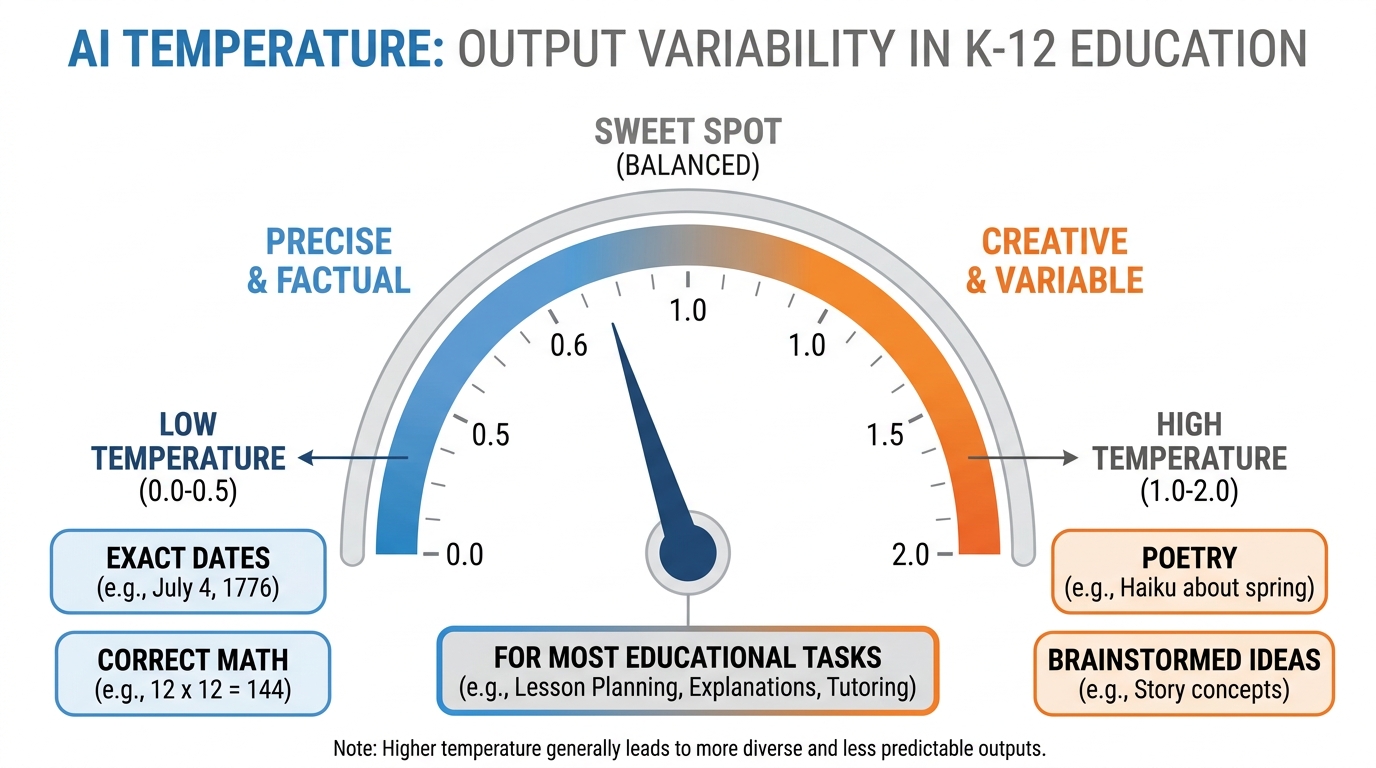
Figure 4:The Temperature Dial. Low temperature = the GPS. High temperature = the jazz musician. Most classroom tasks live in the middle — structured enough to be useful, creative enough to be interesting.
Where the analogy breaks down: the jazz musician has genuine musical knowledge she’s built over years. The model at high temperature isn’t being creative in the human sense — it’s sampling from a probability distribution with wider variance. The outputs can be unpredictable in ways that have nothing to do with creativity and everything to do with statistics.
3.3Token Limits
Tokens are the unit of currency in AI Studio. One token is approximately three-quarters of a word. The token limit setting caps how many tokens the model can use in its response.
Why does this matter to a teacher?
Because if you ask a model to grade twenty essays with detailed feedback, and your token limit is set to 200, you’ll get twenty truncated responses that cut off mid-sentence. Conversely, if you’re running a lot of quick tasks and don’t need lengthy responses, a lower token limit speeds things up and reduces cost.
For detailed feedback tasks: set it high (8,000–32,000 tokens).
For quick lookups and short summaries: 512–2,000 tokens is plenty.
For exploring long documents: use the maximum your model allows.
The practical move: set token limits intentionally for each task rather than leaving them at default.
45.4 Multimodal Magic — Images, Audio, Video, and Documents All at Once
Here is where AI Studio stops being a better text box and starts being something genuinely new.
Every input type you can think of goes in, and Gemini handles them together, synthesizing across modalities in ways that would have required separate specialized tools just three years ago.
Upload a photo of a student’s handwritten diagram and ask: “What misconceptions does this diagram show about the water cycle?”
Upload a 45-minute audio recording of a classroom discussion and ask: “Which students participated most? Which questions got the most engagement? Were there any moments of genuine conceptual confusion?”
Upload a 10-minute student presentation video and ask: “Evaluate this presentation for clarity, evidence use, and rhetorical effectiveness. Use this rubric: [paste rubric].”
Upload three different student essays, a rubric, and a teacher guide, and ask: “Score each essay against the rubric and explain your reasoning for each dimension.”
This is not science fiction. These are things you can do this afternoon.
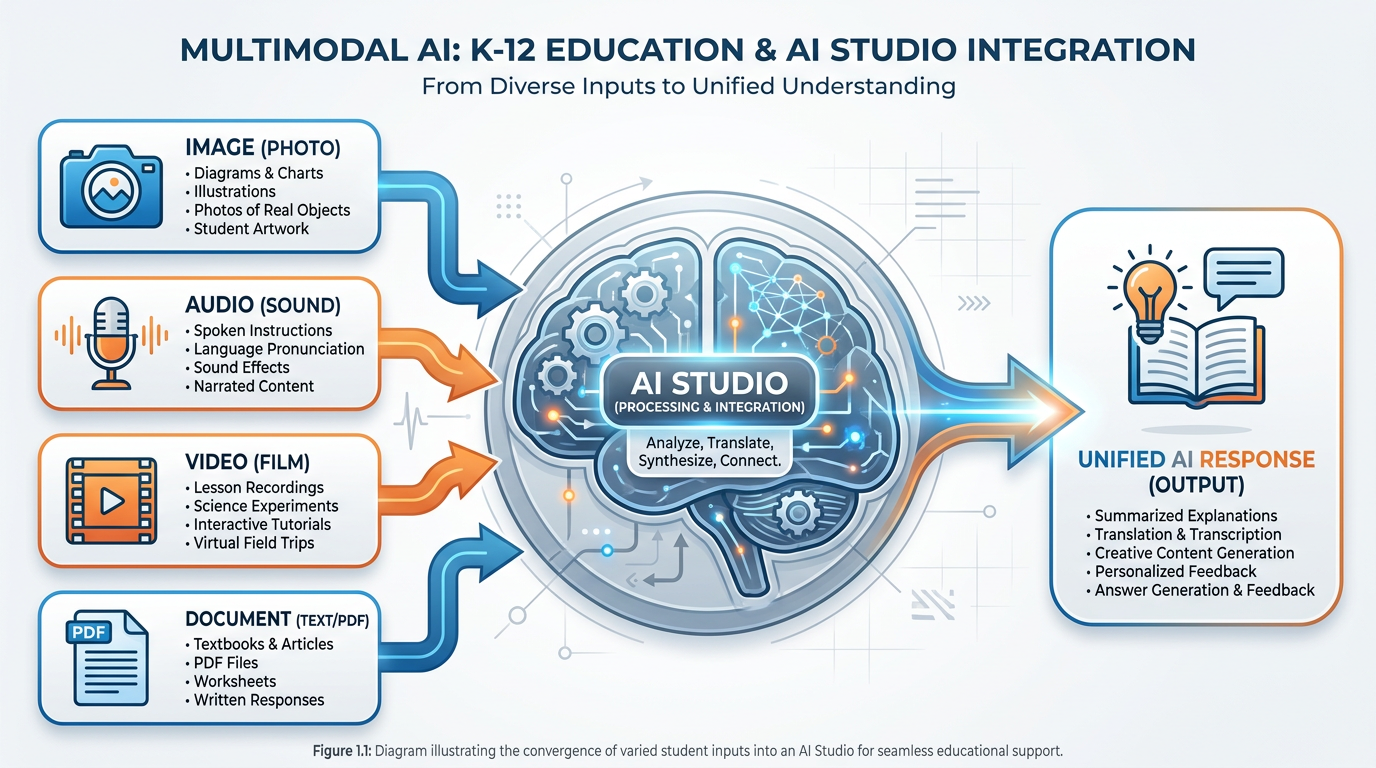
Figure 5:Multimodal Inputs. Image. Audio. Video. Document. All four can arrive simultaneously, and Gemini synthesizes across them. This is not four separate tools — it is one model understanding the world through multiple senses at once.
The pedagogical implications are enormous. Tasks that used to require hours of teacher time — listening to student recordings, analyzing diagrams for misconceptions, providing consistent rubric-based feedback across a class set — can now be supported by AI as a first-pass tool. The teacher still makes the final judgment. But the first-pass work, done well, compresses dramatically.
55.5 Long Context: Feeding the Model an Entire Textbook
This is the feature that changes how teachers work with source material.
Gemini 1.5 Pro’s context window can hold approximately 1 million tokens — roughly 750,000 words, or about 2,500 pages of text. Gemini 2.5 Pro and newer models extend this further. For practical purposes: you can upload your entire course textbook, your curriculum guide, your district pacing calendar, your state standards document, and your unit plan, and ask the model questions that require it to synthesize across all of them.
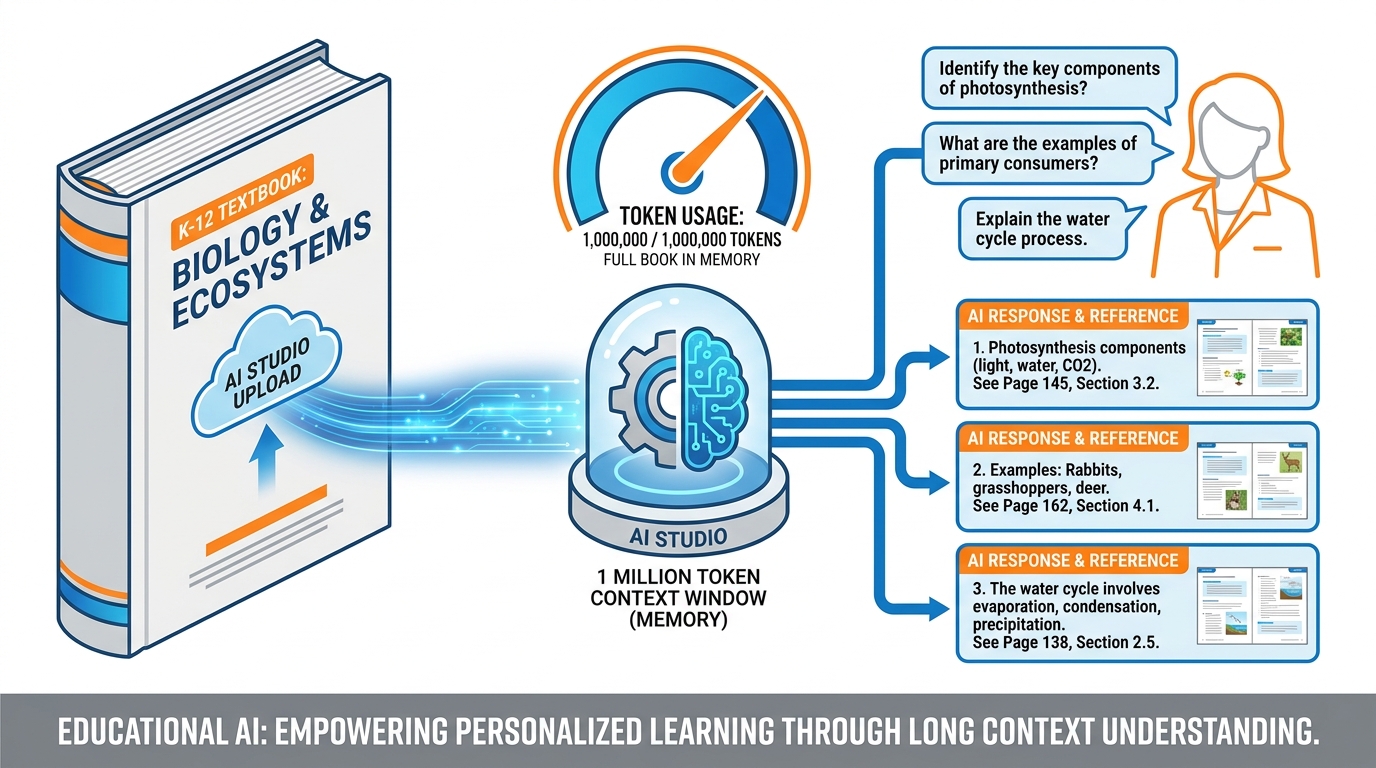
Figure 6:The Whole Textbook in One Conversation. A 1-million-token context window holds approximately 2,500 pages. Upload your entire course text, then query it conversationally — finding misconceptions, generating discussion questions, aligning to standards, cross-referencing chapters.
Here are prompts that actually work at scale:
“I’ve uploaded our 8th-grade science textbook. Generate one discussion question per chapter that requires students to apply the content to a real-world scenario they might encounter in South Florida.”
“I’ve uploaded the Florida Next Generation Science Standards and our textbook’s table of contents. Map each standard to the chapter(s) and section(s) that address it most directly. Flag any standards that are not addressed.”
“I’ve uploaded Chapter 7 of our social studies textbook, which covers the civil rights movement. Identify any factual claims in the chapter that recent historical scholarship has complicated or updated. Cite the specific passages.”
These queries used to require a human expert reviewing hundreds of pages. Now they require uploading a file and asking a question.
The caveat — and this is important — is that AI can make errors even within the context window. It can miss content in a long document. It can hallucinate relationships between sections. The long-context capability does not eliminate the need for expert review; it compresses the time required. Your job shifts from reading-and-identifying to reviewing-and-verifying. That’s a profound time savings, but it’s not zero work.
How to Upload a Large Document to AI Studio
Open AI Studio at aistudio.google.com
Click “Create new prompt”
Click the paperclip / upload icon in the prompt input area
Select your file — PDF, .txt, .docx, and several other formats are supported
Wait for the upload to complete (large files take 10–30 seconds)
You’ll see the file listed as an attachment in the conversation
Now type your question, and the model will respond with reference to the uploaded content
For very large documents: PDFs upload well. Scanned image-based PDFs (not machine-readable text) work less reliably — the model needs actual text characters to process. When in doubt, copy-paste key sections rather than uploading a scan.
65.6 System Instructions vs. Prompts (And Why It Matters Here)
Every conversation in AI Studio has two layers you can work with. Most teachers only use one.
Your prompt is what you type in the conversation. It changes every time. “Grade this essay.” “Explain Newton’s third law.” “Write a discussion question.” Each prompt is a new instruction.
System instructions are invisible text that runs before every message in the conversation. The model reads them first, every single time, and they shape everything that follows.
Think of it this way. Imagine you’re hiring a substitute teacher. The prompt is the lesson plan you leave on the desk. The system instructions are the briefing you give before you leave: “This class has three ELL students who need extra think time. Our classroom culture values effort over correctness. Always wait 10 seconds after asking a question. If students seem disengaged, pivot to pair work.”
The substitute teacher (the model) reads that briefing first, then reads each lesson activity (each prompt) through that lens. The briefing doesn’t change — the activities do.
Here’s what system instructions allow you to do that prompts alone cannot:
Create a consistent persona. “You are an educational feedback assistant. You always acknowledge one strength before identifying an area for growth. You never use the word ‘but.’ You address the student by name if it appears in their submission.”
Enforce a rubric across all interactions. “All feedback you generate should reference the following rubric dimensions: [paste rubric]. Never give a grade without explaining it in terms of these dimensions.”
Set language level. “All your responses should be written at a 7th-grade reading level. Use concrete examples. Avoid jargon.”
Constrain scope. “You are a tutor for this specific unit on fractions. Do not answer questions about other topics. If a student asks an off-topic question, redirect them kindly.”
The practical power: once you’ve written a good system instruction for a feedback workflow, you can reuse it all semester. Every essay you upload, every student submission you feed it, gets the same consistent framework applied. No rewriting the instructions every time.
1 2 3 4 5 6 7 8 9 10 11 12 13 14 15 16 17 18You are an educational writing feedback assistant for middle school students. PERSONA: Warm, encouraging, specific. You are a thoughtful reader who cares deeply about student growth as writers. FEEDBACK FORMAT: Always structure feedback as follows: 1. ONE specific strength (quote the student's own words when possible) 2. ONE growth area with a concrete suggestion for revision 3. ONE question to push the student's thinking further CONSTRAINTS: - Never assign a grade. Leave that to the teacher. - Keep total feedback under 200 words per essay. - Address the student directly as "you" — not in third person. - If the essay is missing a thesis, always name that first. RUBRIC DIMENSIONS TO REFERENCE: Thesis clarity, Evidence quality, Organization, Voice, Mechanics
Example System Instruction — Essay Feedback Assistant
75.7 The Kolb Cycle, Compressed: When Experiments That Took a Week Now Take Five Minutes
In 1984, David Kolb published a theory of learning that has become one of the most cited frameworks in adult education. He called it the Experiential Learning Cycle, and it built on John Dewey’s foundational insight from 1938 that learning emerges from experience, not transmission.
The cycle has four stages:
Concrete Experience — you do something, you encounter something, you feel something
Reflective Observation — you stand back and look at what happened
Abstract Conceptualization — you form a theory, a principle, a generalization
Active Experimentation — you test that theory in a new situation
And then the cycle repeats. The learning deepens with each turn of the wheel.
In traditional educational research, a single turn of this cycle might take days or weeks. You run an experiment. You collect data. You reflect. You form a hypothesis. You test it. In professional development, it might take months. A teacher tries a new instructional strategy (Concrete Experience), talks through it with colleagues (Reflective Observation), reads the research (Abstract Conceptualization), and revises their practice (Active Experimentation).
AI Studio compresses this cycle to minutes.
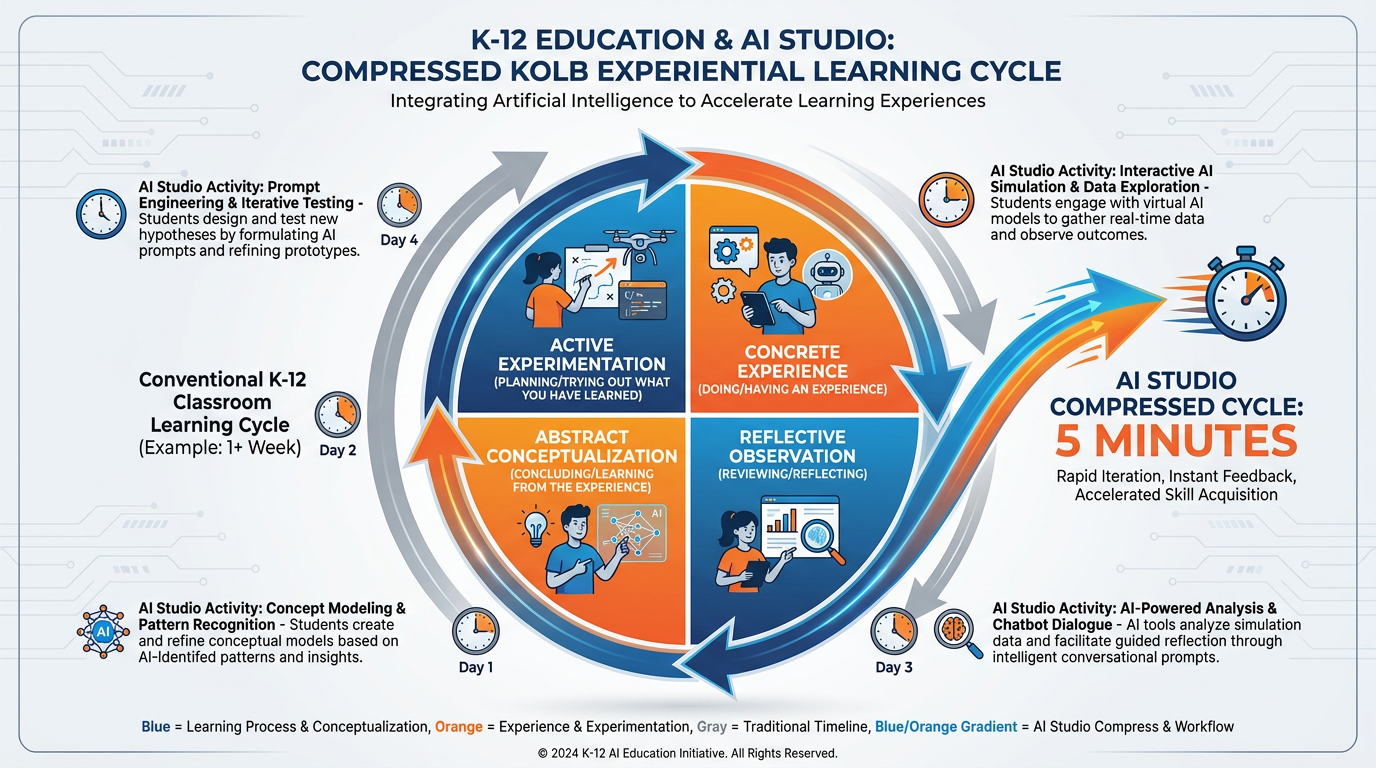
Figure 7:Kolb’s Cycle, Compressed. What traditionally took a week in educational research — doing, reflecting, theorizing, testing — now takes five minutes in AI Studio. The cycle hasn’t changed. The speed has.
Here’s what this looks like in practice.
You upload a rubric and three student essays. You ask AI Studio for feedback drafts (Concrete Experience — you did something, you have results). You read the feedback and notice it’s missing nuance about voice (Reflective Observation). You form a hypothesis: “If I add more specific language about voice in my system instructions, the feedback will be better” (Abstract Conceptualization). You revise the system instructions and run it again (Active Experimentation). Total elapsed time: seven minutes.
You have completed a full Kolb cycle on a feedback design question that, without AI Studio, would have required multiple rounds of feedback, student submissions, teacher review, and iteration across days.
This is not a metaphor. This is the actual mechanics of what happens when you use AI Studio experimentally.
Dewey’s original insight was that experience alone doesn’t produce learning — reflection on experience does. AI Studio creates the conditions for that reflection to happen rapidly and iteratively. Every prompt you run, every tweak you make, every comparison you generate is an opportunity to deepen your own understanding of what these models can and cannot do — and therefore your ability to use them wisely in your classroom.
85.8 Stream of Thought: Watching an AI Reason in Real Time
There’s a feature in newer Gemini models — available in AI Studio — that is one of the most educationally interesting things you can show a classroom.
When you enable “thinking” or “reasoning” in certain model configurations, the model doesn’t just give you an answer. It shows you the steps it took to get there. Not polished steps. Working steps. The rough logic. The consideration and rejection of alternatives. The moment it decides to reframe the question.
It looks like this:
Thinking: The user is asking about the causes of World War I. I should consider the immediate trigger (assassination of Franz Ferdinand) versus the structural causes (imperialism, militarism, alliances, nationalism — MAIN). The question asks me to evaluate which was more important. I need to take a position. The structural causes seem more compelling because... but I should also steelman the other view...
Then: the polished response.
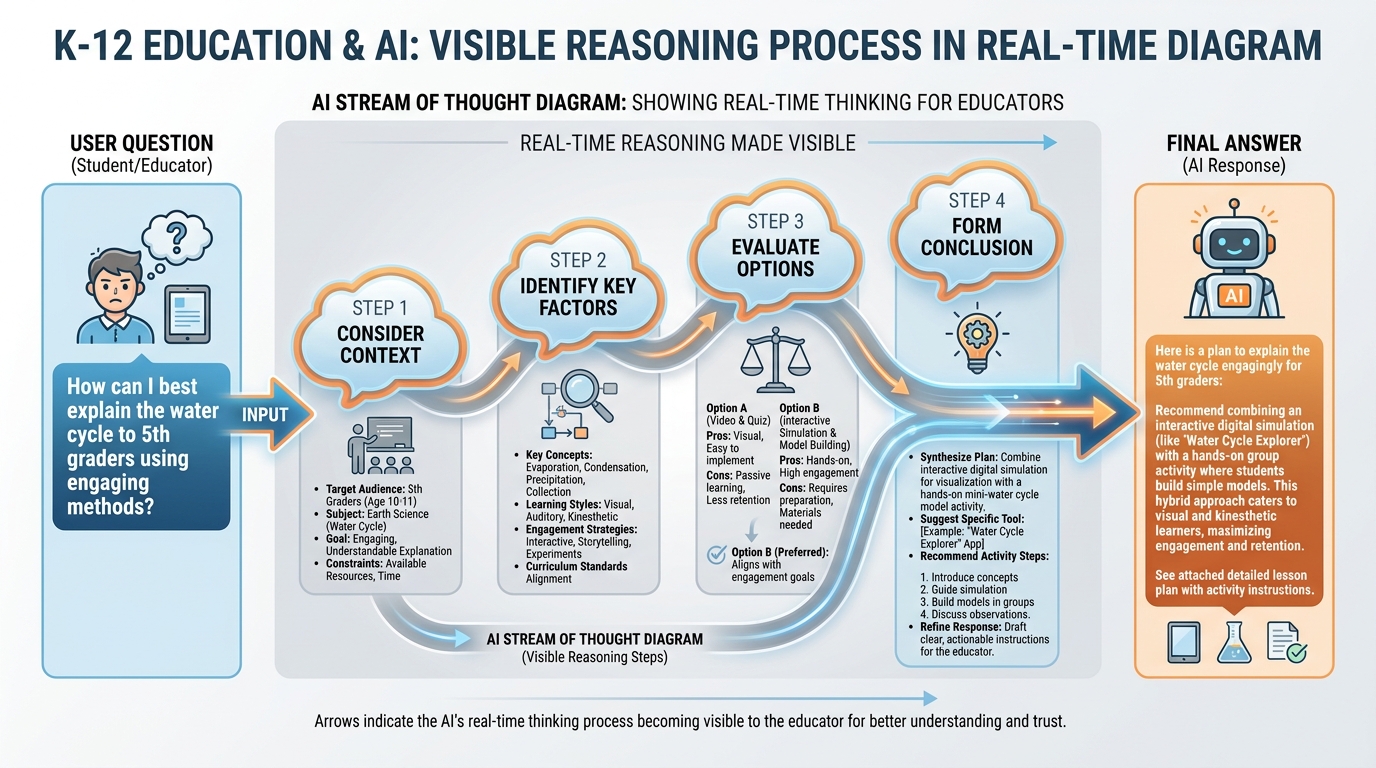
Figure 8:Watching the Machine Think. When you enable reasoning visibility in AI Studio, you see the steps — not just the answer. This is pedagogically powerful: it makes AI’s reasoning process visible and criticizable, rather than treating the output as a black box.
For teachers, this is valuable for two reasons that have nothing to do with AI and everything to do with education.
First, it models metacognition. The visible reasoning process shows students what thinking through a complex problem actually looks like — the tentative steps, the reframing, the acknowledging of counterarguments. This is the kind of explicit modeling of thinking that every writing teacher wishes they could do but rarely can because the process is invisible inside the teacher’s head.
Second, it makes AI criticizable. When students can see the reasoning, they can push back on it. “The model assumed that the economic causes were secondary, but let me check that assumption.” This is exactly the kind of AI literacy we want: not passive consumption of AI output, but active interrogation of AI reasoning.
To enable thinking visibility: in AI Studio, look for models labeled with a lightbulb or “Thinking” indicator. The reasoning display appears as a collapsible section above the final response. You can expand it to see all the steps, or collapse it to just see the answer.
95.9 Comparing Models Side by Side for the Same Task
One of the most practically useful things AI Studio enables — and one that Gemini’s consumer interface does not — is running the same prompt through multiple models and comparing the outputs directly.
Why does this matter for a teacher?
Because the right model for grading a 5th-grade personal narrative is not the same as the right model for analyzing the thematic structure of The Great Gatsby in an AP English class. The right model for generating 30 quick warmup questions is not the same as the right model for writing a complex case study that requires nuanced reasoning about ethical tradeoffs.
If you just use one model for everything, you’re using a hammer for every fastener. Some of those nails are actually screws.
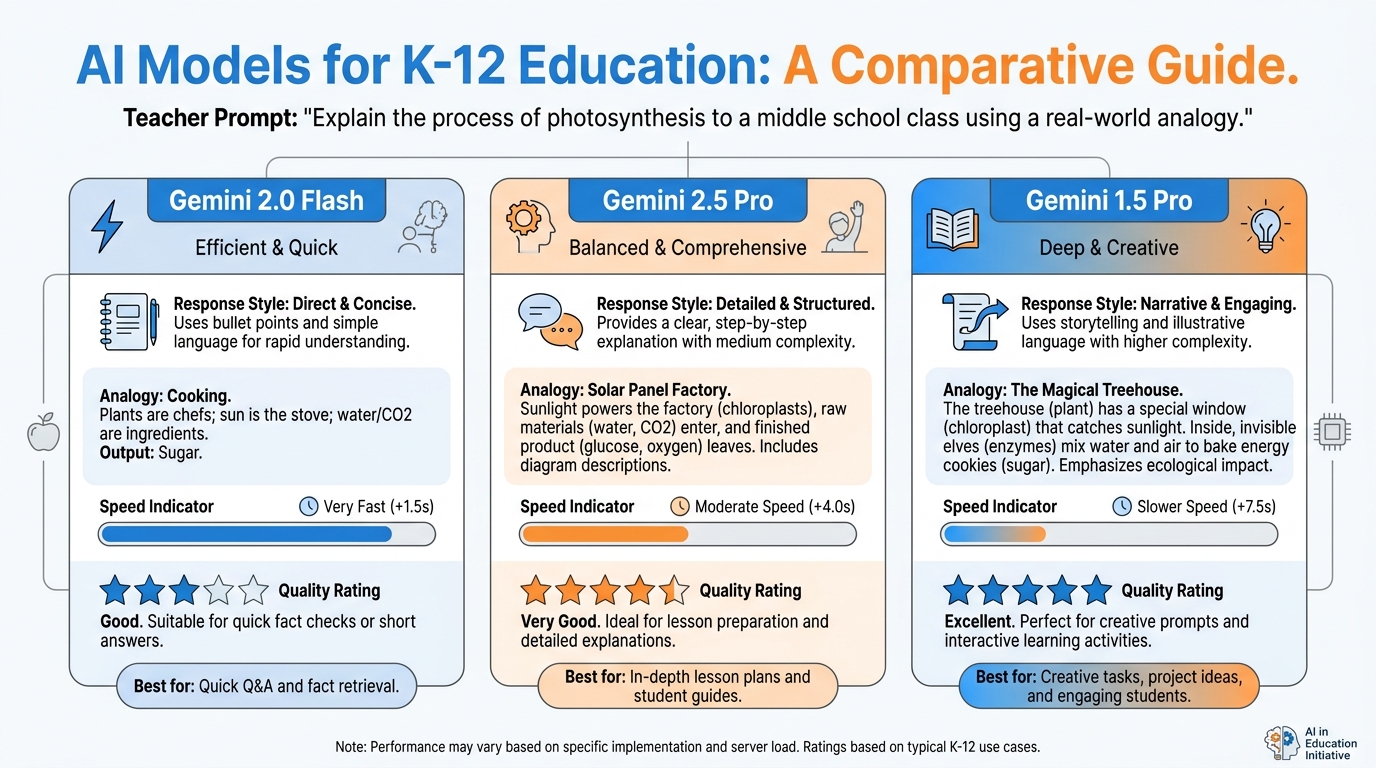
Figure 9:Same Prompt, Different Models. Gemini 2.0 Flash is fast and efficient. Gemini 2.5 Pro is deep and thorough. Gemini 1.5 Pro handles the longest documents. Knowing the difference turns you from a user into a practitioner.
Here’s a practical experiment to run in the first week you use AI Studio:
Take a prompt you actually use — maybe a feedback prompt, maybe a lesson plan generator — and run it through Gemini 2.0 Flash and Gemini 2.5 Pro. Read both responses. Notice:
Which one is more accurate?
Which one is more nuanced?
Which one is faster?
Which one actually addresses what you needed?
Then run it at temperature 0.3 and temperature 1.0 with the same model. Notice the difference in tone and variation.
You’ve just completed a model comparison experiment. You now know more about these tools than the vast majority of people who use them daily.
Quick Model Reference for Educators (2026)
| Model | Best For | Speed | Context |
|---|---|---|---|
| Gemini 2.0 Flash | Quick tasks, high volume, student-facing tools | Fast | 1M tokens |
| Gemini 2.5 Pro | Complex analysis, nuanced writing, deep reasoning | Moderate | 1M tokens |
| Gemini 1.5 Pro | Very long documents, maximum context tasks | Moderate | 1M tokens |
| Gemini 2.5 Flash | Balanced performance and speed | Fast | 1M tokens |
Practical heuristic: When in doubt, start with Flash for speed and Pro when the task requires depth. Compare outputs for the tasks you run most often — your own comparison is more reliable than any chart.
105.10 Image and Video Generation for Your Lessons
AI Studio gives you access not just to language models, but to Google’s image generation capabilities. This changes what’s possible for lesson material creation.
You can generate:
Diagram illustrations for concepts your textbook doesn’t visualize well
Historical scene recreations for social studies (with the appropriate caveats about AI accuracy)
Science process diagrams showing steps in a biological or chemical process
Conceptual comparisons — “show me two illustrations: one of a healthy watershed ecosystem and one showing the effects of runoff pollution”
Age-appropriate book cover images for student writing projects
For video: Gemini-based models can also analyze video you upload — not yet generate it at the same quality level — but the analysis capabilities are substantial. Upload a demonstration video and ask for a transcript, a step-by-step breakdown, or an assessment of whether the demonstration is scientifically accurate.
The key principle for lesson image generation is specificity in prompting. “Make an educational diagram” produces generic results. “Create a labeled cross-section diagram of a plant cell showing the cell wall, cell membrane, chloroplasts, mitochondria, and nucleus, with arrows indicating the direction of photosynthesis and cellular respiration” produces something you can actually use.
115.11 Saving, Sharing, and Embedding Your Work
A workflow you build in AI Studio is only valuable if you can use it again, share it with colleagues, and come back to it next semester.
Here’s how to save and share effectively.
Saving prompts: In AI Studio, every prompt session is automatically saved to “My prompts.” You can name them — do this. “5th Grade Essay Feedback Workflow” is findable. “Untitled prompt 47” is not. Spend 10 seconds naming every saved prompt you want to keep.
Sharing with colleagues: AI Studio doesn’t have a direct “share with teacher” button the way Google Docs does. The practical workaround: export your system instructions and prompt template as a Google Doc, then share the Doc. Include the system instructions, the example prompt, the model settings (temperature, token limit), and a brief note about what it’s for and how to use it. This is your “recipe card.”
Creating Google AI Gems from Studio experiments: Once you’ve refined a workflow in AI Studio, you can port it to a Gem in Gemini (covered in Chapter 3). The system instructions become the Gem’s persona. The workflow becomes repeatable without reopening AI Studio every time.
Keeping a prompt library: One of the most valuable things you can do this semester is maintain a running Google Doc (or Sheets file) of prompts that work. Columns: Task, System Instructions, Model, Temperature, Notes on what works. By the end of the year, this library becomes one of your most useful professional development artifacts — and it’s shareable with every teacher on your team.
Template: AI Studio Recipe Card (Share with Colleagues)
AI Studio Workflow: [Name]
Last updated: [Date]
Created by: [Your name]

TASK: [What this workflow does]
MODEL: [Which Gemini model]
TEMPERATURE: [Setting]
TOKEN LIMIT: [Setting]

SYSTEM INSTRUCTIONS:
[Paste your full system instructions here]

EXAMPLE PROMPT:
[Paste the prompt template, with [BRACKETS] for the parts that change each time]

NOTES:
- What this works well for
- What it doesn't work well for
- Any quirks or edge cases to know about
Print this, post it in your department’s shared folder, and update it as you refine the workflow.
125.12 When to Move from AI Studio Back to the Classroom
Every chapter in this book eventually returns to the same place: the students in front of you.
AI Studio is a preparation tool. A design tool. A refinement tool. It lives in the back room. Your classroom is the front room — the place where the learning actually happens, where the human relationships live, where the irreplaceable work of teaching gets done.
Here’s when to close the laptop and step into the room.
When students need what only you can give. AI can provide feedback on structure, evidence, and mechanics. It cannot notice that a student’s writing has gone flat because something is happening at home. It cannot hear the frustration in a student’s voice when they’re about to give up on a hard problem. It cannot make the split-second decision to set aside the lesson plan because this particular group of students needs something different today.
When the AI-assisted work is done. You’ve generated the first-pass feedback. You’ve produced the discussion questions. You’ve built the rubric. Now the teaching begins — the conversation, the clarification, the adaptation, the moments of genuine understanding that no model can replicate.
When students need to struggle productively without a bypass. Recall from Chapter 1: Bjork’s desirable difficulties require struggle. If students are doing the hard cognitive work — writing, arguing, analyzing, creating — AI Studio should be silent. The struggle is the point. The tool has no place in the moment when the learning is happening.
When you notice the tool is doing too much. If you find yourself using AI Studio to automate more and more of your professional judgment — not just your administrative tasks, but your actual teaching decisions — that’s a signal to step back. AI Studio is powerful enough to create a kind of intellectual automation that feels efficient and quietly erodes the professional competence it was supposed to support.
The back room is extraordinary. But you live in the front room.
13📝 Case Study & Discussion Board (2 pts)
13.1Case Study: Two Teachers, One Tuesday, Infinite Tokens
Ms. Delgado teaches 8th-grade English at a Title I school in Miami. She has 125 students across five sections, and grading a class set of essays typically consumes her entire Sunday. This semester, she decided to use AI Studio to build a multimodal essay feedback workflow.
She spent 90 minutes on a Tuesday evening designing the workflow: uploading her rubric, writing system instructions that matched her feedback style, testing the temperature settings, and comparing outputs across two model versions. She ran ten sample essays through it, reviewed the feedback, refined the system instructions twice, and ended up with a workflow that produced first-pass feedback that she estimated was 75–80% of what she would have written herself.
The next Sunday, instead of spending 6 hours grading, she spent 2 hours: one hour reviewing and personalizing the AI-generated feedback, and one hour identifying patterns across the class set that told her what to teach next week.
Meanwhile, Mr. Torres teaches 8th-grade English two classrooms down. He has the same workload. He doesn’t use AI Studio. He spent that same Sunday grading for 7 hours and, exhausted, left the feedback less specific than he wanted it to be. He plans to “look into AI tools when he has time.”
Discussion Prompt (minimum 250 words):
What did Ms. Delgado’s 90-minute Tuesday investment make possible that Mr. Torres’s “I’ll get to it later” stance did not? Analyze the learning design dimension of this scenario — not just the efficiency gain.
Ms. Delgado describes the AI feedback as “75–80% of what I would have written.” What is in the remaining 20–25%? What kinds of feedback require the human teacher that AI consistently cannot provide? Ground your answer in at least one theory or concept from this course.
What would you need to believe — about your own time, your students, or your professional identity — to make the Tuesday 90-minute investment? What resistance, if any, do you feel?
Discussion Guidelines:
Your initial post must be a minimum of 250 words.
You must include at least one scholarly or credible citation (APA format) — from this chapter’s theoretical sources (Kolb, 1984; Dewey, 1938; Bjork’s desirable difficulties research) or your own research.
You must respond meaningfully to at least two peers — not agreement, but substantive engagement with their argument (minimum 75 words per response).
Due: Initial post by Wednesday, responses by Sunday.
14🧪 Hands-On Lab: Build a Multimodal Essay-Grading Workflow (10 pts)
14.1Overview
This is the chapter’s core applied exercise. You are going to build a real, usable, multimodal essay-grading workflow in AI Studio — not a hypothetical, not a demonstration. Something you could use with your actual students.
By the end of this lab, you will have: a tested system instruction, a prompt template, a sample AI feedback draft, and a reflection on what the AI did and didn’t do well.
Time required: Approximately 90 minutes
Tools: AI Studio (aistudio.google.com)
Points: 10
14.2Step 1: Prepare Your Materials (15 min)
Before you open AI Studio, gather three things:
1. A rubric. This can be a rubric you actually use, or one you create now. It should have at least four dimensions with descriptors (e.g., Thesis, Evidence, Organization, Voice, Mechanics). If you don’t have one, ask Gemini to generate a 5-dimension rubric for an 8th-grade argumentative essay and adapt it.
2. Two to three sample student essays. Use real student essays (anonymized) if you have them. If not, ask Gemini to generate two student essays at different quality levels — one strong, one developing. Ask for essays on a topic relevant to your teaching area.
3. A feedback style reference. Write 3–4 sentences describing how you give feedback. Example: “I always start with a specific strength. I frame growth areas as questions or suggestions, never commands. I keep feedback under 150 words. I reference the rubric dimensions directly.”
14.3Step 2: Write Your System Instructions (20 min)
Open AI Studio. Click “Create new prompt.” Before you type anything in the main chat, click on “System instructions” (in the panel on the left or top, depending on your view) and write your feedback assistant’s persona.
Use this structure as your starting point — but adapt it to your actual voice and your actual rubric:
You are a writing feedback assistant for [grade level] students.

FEEDBACK VOICE: [Describe your feedback style]

RUBRIC DIMENSIONS: [List your rubric dimensions and their brief descriptors]

FORMAT:
1. One specific strength (quote the student's own words when possible)
2. One growth area with a concrete, actionable suggestion
3. One question to push the student's thinking further

CONSTRAINTS:
- Keep feedback under [X] words
- Address the student directly as "you"
- Never assign a numeric score — leave that to the teacher
- If the essay lacks a thesis, name that first
Set your model to Gemini 2.5 Pro (for quality) or Gemini 2.0 Flash (for speed). Set temperature to 0.7.
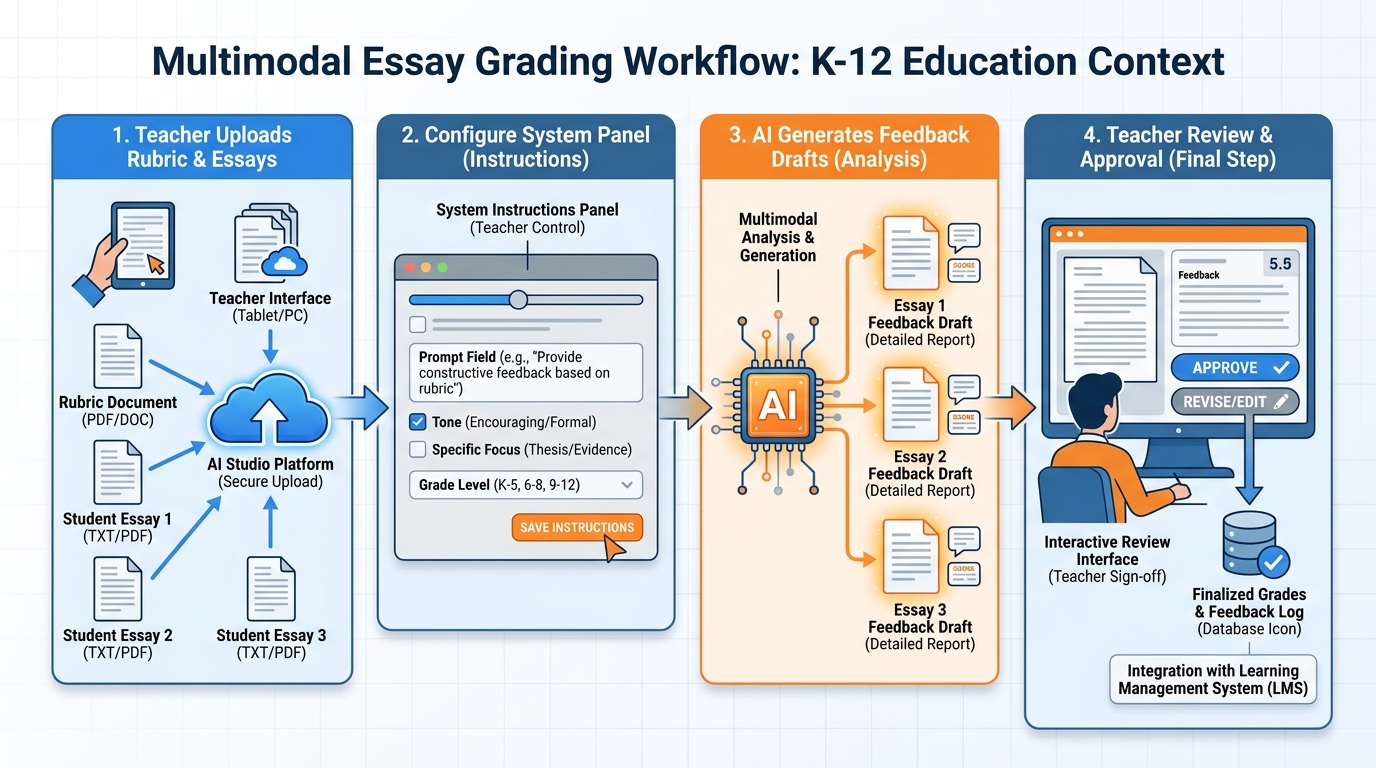
Figure 10:The Multimodal Essay-Grading Workflow. Upload rubric + essays → write system instructions → generate feedback drafts → teacher reviews and personalizes. The AI handles the first pass; you handle the professional judgment.
14.4Step 3: Run Your First Essay (10 min)
In the chat area, type the following prompt — adjusting the brackets for your actual materials:
Here is a student essay. Please provide feedback using the rubric and format
in your system instructions.

RUBRIC: [Paste your rubric OR note that it's in the system instructions]

STUDENT ESSAY:
[Paste your first student essay here]
Read the feedback carefully. Ask yourself:
Did it follow my format?
Did it correctly identify a genuine strength?
Is the growth area suggestion specific enough to act on?
Does it sound like feedback a student could use?
14.5Step 4: Compare With and Without System Instructions (15 min)
This is the most important step. Temporarily clear your system instructions and run the same essay with this bare-bones prompt:
Give feedback on this student essay: [Paste essay]Compare the two outputs. Notice what the system instructions changed about:
Specificity of feedback
Adherence to format
Tone and voice
Whether the feedback is usable by a student
Write 3–4 sentences in your notes about what the system instructions changed and why that matters.
14.6Step 5: Run Your Second and Third Essays (15 min)
Run your remaining essays through the full workflow (with system instructions active). After each one, review and note: what would you add, change, or correct in the feedback before sending it to a student?
This review step is not optional. It’s the professional judgment that keeps you in the loop. The AI generates; you decide.
14.7Step 6: Group Build — Finding and Solving a Real Problem with AI Studio (15 min)
Working with your group, identify a real grading or feedback challenge that exists in your school or district context right now. Not a hypothetical. Something actual — an issue you’ve encountered with how feedback works, how rubrics get applied inconsistently, how students receive and act on comments.
Use AI Studio to help your group develop a solution. This could be a better rubric, a feedback workflow, a system for categorizing common errors across a class set, a process for making feedback more student-actionable. Let the AI be your thinking partner: it will surface options, identify tradeoffs, and help you think through the design. Your group makes the decisions.
Be prepared to present to the full class:
What problem you identified
How AI Studio helped you think through it
What your proposed solution looks like
What the AI got right — and what it missed or oversimplified
14.8Submission
Submit to Canvas:
A screenshot or exported text of your system instructions
Two AI-generated feedback samples (before system instructions and after)
Your 3–4 sentence comparison note (Step 4)
A 200-word reflection: What surprised you about this workflow? What will you do differently next time? What professional judgment did you have to apply that the AI couldn’t?
Grading rubric:
| Criterion | Points |
|---|---|
| System instructions are specific and well-designed | 3 pts |
| Comparison (with/without) shows clear analysis | 2 pts |
| AI feedback samples are genuine and reviewed | 2 pts |
| Reflection demonstrates critical engagement with tool limits | 2 pts |
| Group Build participation and class discussion | 1 pt |
| Total | 10 pts |
15🎯 In-Class Assignment (10 pts)
Details and instructions will be provided in class.
Points: 10
16Glossary
AI Studio Google’s web-based developer and researcher interface for experimenting with Gemini models. Available at aistudio.google.com. Exposes model selection, temperature, token limits, system instructions, and multimodal file upload — controls not visible in the consumer Gemini interface.
Context Window The total amount of text, measured in tokens, that a model can process at once — including system instructions, conversation history, uploaded documents, and the current response. Gemini models support up to 1 million tokens, approximately 750,000 words.
Temperature A model setting that controls response variability. Low values (near 0) produce consistent, predictable, factually safe responses. High values (near 2) produce varied, creative, sometimes unpredictable responses. Most educational tasks work best between 0.7 and 1.0.
Token The basic unit of text in language model processing. Approximately three-quarters of a word. Token limits control maximum response length; context windows are measured in total tokens.
System Instructions Text that runs before every conversation message in AI Studio, setting the model’s persona, constraints, format, and behavior for the entire session. The difference between a generic AI response and a purpose-built educational tool.
Multimodal Input The ability to provide multiple types of input — text, images, audio, video, and documents — within a single AI conversation. Gemini models process these jointly, reasoning across modalities simultaneously.
Experiential Learning Cycle (Kolb) A four-stage model of learning: Concrete Experience → Reflective Observation → Abstract Conceptualization → Active Experimentation. Proposed by David Kolb (1984), building on Dewey’s principle that learning emerges from experience and reflection, not passive transmission.
Long Context The capability to process very large amounts of text in a single context window. Gemini’s 1-million-token context window enables feeding entire textbooks, curriculum guides, and standards documents into a single conversation.
Stream of Thought A feature in AI Studio’s thinking-enabled models that makes the model’s reasoning steps visible before the final response. Educationally useful for modeling metacognition and making AI reasoning criticizable.
Model Comparison The practice of running the same prompt through multiple AI models to evaluate which produces better results for a specific task. AI Studio enables this directly; Gemini’s consumer interface does not.
Desirable Difficulties (Bjork) Instructional conditions that slow performance in the short term but deepen learning over time. Includes spaced practice, retrieval practice, interleaving, and generation effects. Relevant to AI Studio because AI can both support and undermine desirable difficulties depending on how it is used.
Productive Failure (Kapur) The pedagogical strategy of presenting students with challenging problems before formal instruction. The initial struggle phase activates prior knowledge and creates intellectual need, improving retention when instruction subsequently arrives.
Prompt Library A curated collection of tested AI prompts, system instructions, and model settings maintained by a teacher or department. A prompt library converts one-time experiments into reusable professional tools.
Chapter 5 of 8 — AI Thinking for Educators · Dr. Ernesto Lee · Miami Dade College